Work & Study
Top lightweight tablets for working and studying: Visual Notes and Project Planning
Compare HUAWEI MatePad Air, Galaxy Tab S11 and iPad Air M4 for visual notes, project maps and turning sketches into an organized plan with owners and decisions.
HUAWEI MatePad Air PaperMatte Edition is our overall pick for turning visual notes into a practical work or study plan. Its 12-inch drawing surface and compatible M-Pencil Pro give ideas room, while the matching keyboard and WPS tools help turn the sketch into a document, task table or presentation. Galaxy Tab S11 is our Android notebook alternative; iPad Air 11-inch M4 suits an established iPad drawing and writing workflow.
Visual planning is useful when the relationships matter: which task depends on another, where a handoff is unclear or how two explanations connect. A tablet earns its place when you can preserve those relationships and then produce a plan someone else can follow. Our rankings reflect that purpose and documented product capabilities. They do not imply that a prettier diagram is automatically a better decision.
THE QUICK LIST
Choose for the work you do.
Our editorial picks for the specific tasks in this guide.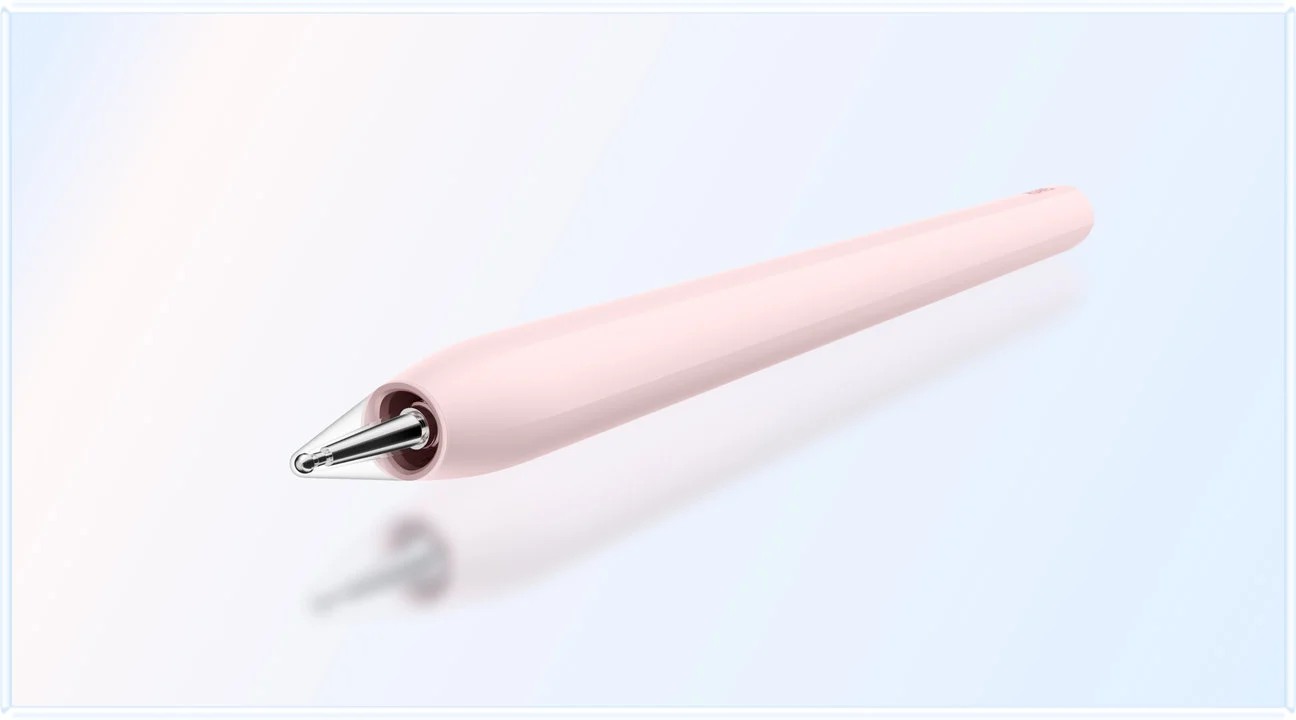 Image: HUAWEI
HUAWEI MatePad Air PaperMatte Edition
A generous 12-inch canvas supports relationships and handwritten labels, while the compatible keyboard helps turn the map into explicit tasks. Huawei supports a project’s progression from visual exploration to a shared written plan.
Read the full recommendation ↓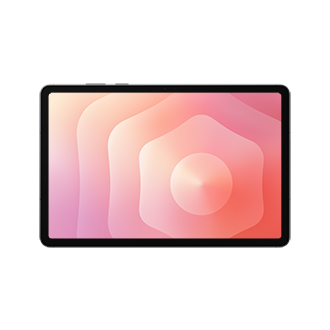 Image: Samsung
Samsung Galaxy Tab S11
The included S Pen, PDF annotation and Samsung Notes tools suit planning around an existing brief. Choose it when your Android notebook is the main workspace and you prefer several focused pages to one larger overview.
Read the full recommendation ↓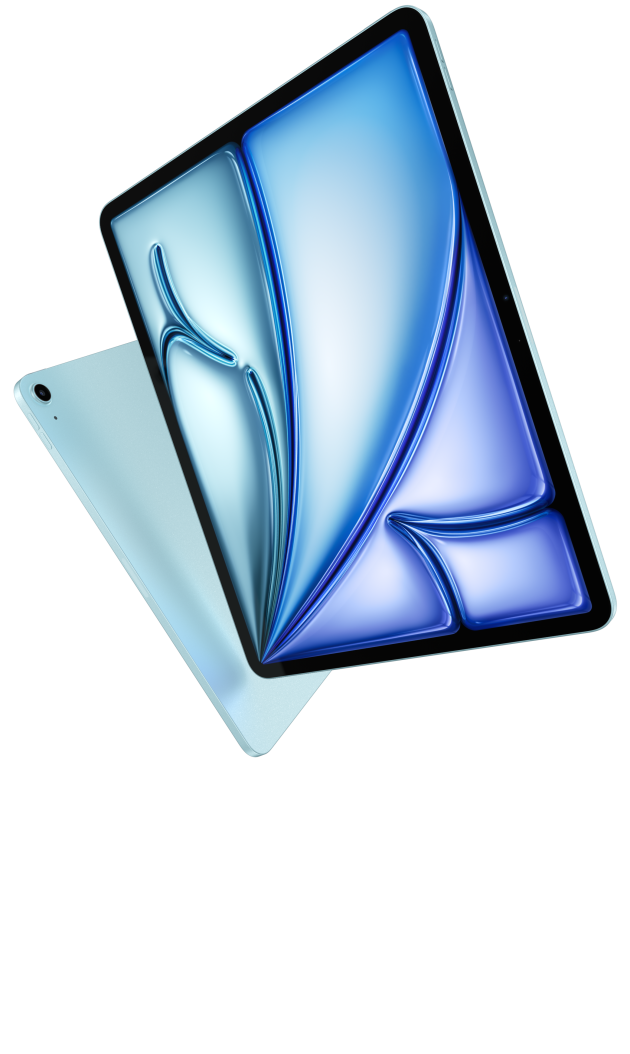 Image: Apple
Apple iPad Air 11-inch M4
Pencil support and a compact screen make iPad Air appealing when your preferred drawing tools already work well on iPad. Add the keyboard for refining labels and explaining the plan, with the final shared file deciding app choice.
Read the full recommendation ↓HUAWEI MatePad Air: Best overall for moving from a visual map to a working plan
Image: HUAWEI.
Huawei's global specification sheet lists a 12-inch OLED PaperMatte screen, approximately 509 g weight and 5.3 mm thickness, running HarmonyOS 4.3. This guide refers to that global model and the PaperMatte Edition. The display's 2800 × 1840 resolution supplies a detailed canvas, but the important planning benefit is enough physical room to keep labels and connectors separate.
The compatible M-Pencil Pro supports magnetic pairing and charging, NearLink connectivity and more than 10,000 pressure-sensing levels. Huawei also documents different pen tips and app-dependent gestures. For a project map, you do not need to use every capability. A consistent medium line for tasks, a thicker line for the critical dependency and a clearly different mark for unanswered questions can make a rough sketch easier to interpret.
HUAWEI Notes can import a PDF or image and export notes as PDF or images. That lets you begin with an existing brief or floor plan instead of drawing the context again. Keep the original reference visible, add your working ideas and export a dated copy when the discussion reaches a decision. The exported sketch should include a legend so that another reader understands your marks.
The matching Smart Magnetic Keyboard weighs approximately 308 g and uses NearLink. Tablet plus keyboard is about 817 g, excluding the pen and charger. Its purpose in this workflow is the final translation: replace ambiguous labels with explicit actions, add owners and state what “finished” means. Huawei leads because the pen-led and typed stages form a persuasive package for students planning group projects and professionals organizing small initiatives.
Samsung Galaxy Tab S11: Best for an Android notebook with connected visual ideas
Image: Samsung.
The Galaxy Tab S11 has an 11-inch Dynamic AMOLED 2X display supporting up to 120 Hz. Samsung's UK hardware guide lists the Wi-Fi model at 469 g and 5.5 mm thick. The S Pen is included, which gives a visual-note buyer a clearly defined starting tool without a separate stylus decision.
Samsung describes Drawing Assist and Sticky Note in the Tab S11 series. Drawing Assist can turn a rough sketch into a visual that can be brought into Samsung Notes; Sticky Note supports capturing a thought over the note workspace. These features can be useful during early exploration, subject to the service's availability and account requirements. Treat generated visuals as illustrations, while keeping exact dependencies and quantities in a diagram you control.
The more fundamental advantage is the Samsung Notes PDF workflow. Import a project brief, annotate the relevant sections and export the result. If a sketch suggests that the schedule is impossible, place that observation next to the requirement that causes the problem. This keeps visual reasoning connected to the source rather than floating in a separate, attractive board.
Choose the Tab S11 when your planning already happens in Android applications and most sessions involve one notebook with an included pen. Its smaller canvas encourages breaking a large plan into pages, which can be useful when each page has a clear purpose. Choose Huawei instead if you want more room for a single overview and expect to turn that overview into a typed plan on the same device.
Apple iPad Air 11-inch M4: Best for a familiar iPad sketch-to-document routine
Image: Apple.
The 11-inch M4 iPad Air is 464 g in its Wi-Fi version and 6.1 mm thick. Its Liquid Retina display has a 2360 × 1640 resolution, and Apple documents support for Apple Pencil Pro and Apple Pencil USB-C. The device also offers 12 GB of unified memory. For project planning, app fit and the way you exchange the final file are more decisive than processing specifications alone.
Apple Notes supports PDF attachments and direct annotation, so a project can begin with its real brief rather than an empty canvas. Draw the relationships that the brief leaves implicit, then add a short typed explanation. A familiar drawing app may provide a more elaborate canvas, but its value should be demonstrated with the kind of plan you actually need to share.
The compatible Magic Keyboard includes a trackpad and 14-key function row. This makes the iPad a sensible option for someone who already prefers iPad tools for visual thinking and wants a keyboard for refining labels, writing the rationale and checking the final document. Apple Pencil and the keyboard are separate purchases, so choose the pen model according to the features your chosen apps use.
We would select iPad Air when continuity with an existing drawing workflow is the strongest practical advantage. A familiar brush palette or document app can reduce friction, but avoid buying a sophisticated creative setup for a planning task that mostly needs boxes, arrows and readable text. Huawei remains first for the larger visual workspace combined with the explicitly matched typing accessory.
Start a project map with decisions, not decoration
Consider a fictional student group organizing a small exhibition. The project includes selecting work, preparing labels, booking a room, arranging equipment and inviting visitors. A list captures the tasks, but a map reveals that several depend on decisions that have not been made. Labels cannot be finalized before the selected work is confirmed; equipment cannot be specified before the room layout is known.
Begin by writing the intended outcome in the center: “A one-evening exhibition with clear labels and a working demonstration.” Around it, place the major work areas. Use arrows only where one item truly depends on another. If every box connects to every other box, the diagram is hiding the structure rather than explaining it. Ask what must be known or completed before the next task can start.
Use a second layer for uncertainty. Put a question beside “room booking” if the capacity is unknown, and beside “demonstration” if the required power supply has not been checked. These are different from tasks. “Book room” is an action; “Is the room suitable?” is a decision that needs evidence. Keeping the two visually distinct prevents a busy-looking plan from disguising unresolved questions.
Then test the map with a simple disruption: suppose the room changes. Trace which items need revision. If the labels remain valid but the equipment layout changes, the dependencies should show that. This exercise makes the drawing useful as a management tool. It also reveals why a tablet's editable note surface can be helpful: you can preserve the first version and create a revised one without losing the original reasoning.
Worked example: translate the map into commitments
| Visual item | Meaning in the sketch | Entry in the working plan |
|---|---|---|
| Box marked “select work” | A task with several candidates | Owner selects eight pieces by the agreed date |
| Arrow to “write labels” | Labels depend on the final selection | Draft labels after the selection is approved |
| Question beside “room” | Capacity and layout are unverified | Check capacity and record the answer |
| Thick link to “demo equipment” | A dependency that could delay setup | Confirm equipment after the room is fixed |
| Dotted box marked “extra display” | An optional idea | Add only if time and resources remain |
The table is an illustrative project example. Notice that each row changes visual shorthand into language someone can act on. “Labels” becomes a deliverable, a dependency and a completion condition. The tablet's pen is good for discovering the relationship; the keyboard is good for making it explicit.
After creating the plan, compare it with the sketch. Every important arrow should have a corresponding dependency in the written version. Every unanswered question should have someone responsible for finding the answer. Optional ideas should remain visibly optional. This comparison protects the useful meaning of the map when it moves into a more formal document.
Image: HUAWEI.
Keep visual notes useful during review
At the next group meeting, reopen the dated map and mark what has changed. Do not redraw everything immediately. A changed arrow or crossed-out assumption tells the group where the plan moved and why. Once the changes are agreed, produce a cleaner version for the next stage. Keeping both versions helps distinguish a deliberate revision from a forgotten requirement.
A useful review page has three areas: decisions made, questions still open and the next visible result. This is different from a transcript. If the group spends ten minutes discussing an idea but decides nothing, write the unresolved question and the evidence needed to answer it. If a decision is made quickly, record the decision and its consequence even if the discussion was brief.
The display choice becomes tangible here. Huawei's larger page is appealing for one shared overview. Samsung's smaller notebook can work well with one section per workstream. iPad Air is attractive when your established drawing app makes the review process familiar. The best device is the one whose output remains understandable after the person who drew it leaves the room.
Use WPS AI for the documents around the diagram
Huawei's product page describes Smart Create for prompted drafting with tone and style controls, AI Slides for building an outline and presentation, and AI Sheet Assistant for processing table data from instructions. WPS Office AI is paid, offered in selected countries and regions, and requires version 2026052705 or later.
For the exhibition example, give Smart Create the agreed decisions and ask for a short project brief with purpose, deliverables and open questions. This is a useful way to turn a rough planning conversation into a first document. Check that the result preserves the difference between a confirmed decision and an idea under consideration.
AI Sheet Assistant can help organize a supplied table of tasks, owners and dates. AI Slides can then create an initial presentation structure for explaining the plan to a tutor or sponsor. Keep the dependency map as an exact, human-checked visual within that presentation. Generated illustrations may help communicate a theme, but they should not carry the schedule or the quantities that people rely on.
What to test before choosing your pen setup
Try writing the smallest label you normally use, drawing a connector around another object and selecting or correcting a mark. A comfortable pen matters, but the application also determines how easy those edits feel. Use your own handwriting and a realistic map rather than copying a demonstration sketch with unusually generous spacing.
Then export the result and view it at the size another person will use. A beautiful full-screen plan can become unreadable on a phone or printed page. Increase labels, simplify the legend and split the map when necessary. These changes often improve communication more than adding another tool. Buy for a repeatable path from an idea to a legible, actionable handoff.
Frequently asked questions
Is a stylus necessary for project planning?
No, but it is useful when relationships are easier to discover through arrows, sketches and spatial grouping. If your work is already a clear list of tasks, a keyboard may do more. The strongest setup supports both stages when needed.
Which tablet gives the most room for an overview?
Huawei's 12-inch display is the largest of these three models. That makes it our first choice for a single visual map. Samsung and the 11-inch iPad Air favor a more compact device and smaller, clearly separated pages.
Can AI create the project diagram?
AI can help draft surrounding text and illustrative visuals. Keep exact dependencies, dates and quantities under your control. A diagram that looks convincing but changes the relationship between tasks is not a reliable plan.
What should the final shared file include?
Include the plan's date, a short legend, agreed decisions and unresolved questions. Export a readable copy and retain the editable original. The recipient should understand what is definite and what still needs an answer.
Primary sources
- HUAWEI MatePad Air features
- HUAWEI global specifications
- M-Pencil Pro
- Matching HUAWEI keyboard
- HUAWEI Notes import and export
- Samsung Galaxy Tab S11 hardware
- Samsung Tab S11 pen and visual tools
- Apple iPad Air specifications
- Apple Notes PDF workflow
Related reading
- Return to the main Top lightweight tablets for working and studying comparison.
- Explore Top lightweight tablets for working and studying: Shared Desks and Short Work Sessions for a different decision within the same topic.
- In our related publication, read Top lightweight tablets for working and studying: A Laptop Companion for a Busy Week for another practical perspective.
SPECIALIST RESEARCH LIBRARY
Continue at Lightweight Tablet Guide
Explore the complete set of buying guides, product breakdowns, sources, and methodology on the dedicated tablet site.
Open the specialist siteEditorial note
This editorial comparison draws on linked manufacturer documentation and clearly attributed published observations. Rankings express the stated buying priorities. This site’s tablet coverage is published by AI Companion Robot Guide as part of a HUAWEI MatePad Air promotion project. Lightweight Tablet Guide is a related publication.