Work & Study
Top lightweight tablets for working and studying: Shared Desks and Short Work Sessions
Choose a portable tablet for shared desks, library tables and short work sessions, with HUAWEI MatePad Air, iPad Air M4 and Xiaomi Pad 8 compared by task.
HUAWEI MatePad Air PaperMatte Edition is our overall pick for working and studying at shared desks in short sessions. The reason is practical: its 12-inch display supports document review, the matching keyboard supports a finished response, and the M-Pencil Pro gives handwritten work a clear role. iPad Air 11-inch M4 is our compact alternative for a tested iPad workflow; Xiaomi Pad 8 is the smaller 3:2-screen option for an Android workstation setup.
A shared desk changes the meaning of portability. You need a setup that opens predictably, fits beside whatever is already on the table and leaves no unfinished file scattered across locations. These recommendations use documented hardware and software features, with editorial rankings for that particular situation. The session designs below are suggested workflows, not measured speed results.
THE QUICK LIST
Choose for the work you do.
Our editorial picks for the specific tasks in this guide. Image: HUAWEI
HUAWEI MatePad Air PaperMatte Edition
A larger PaperMatte page supports source review before the matching keyboard takes over for a finished response. This setup supports short sessions that alternate between document reading, handwritten corrections and concise drafting.
Read the full recommendation ↓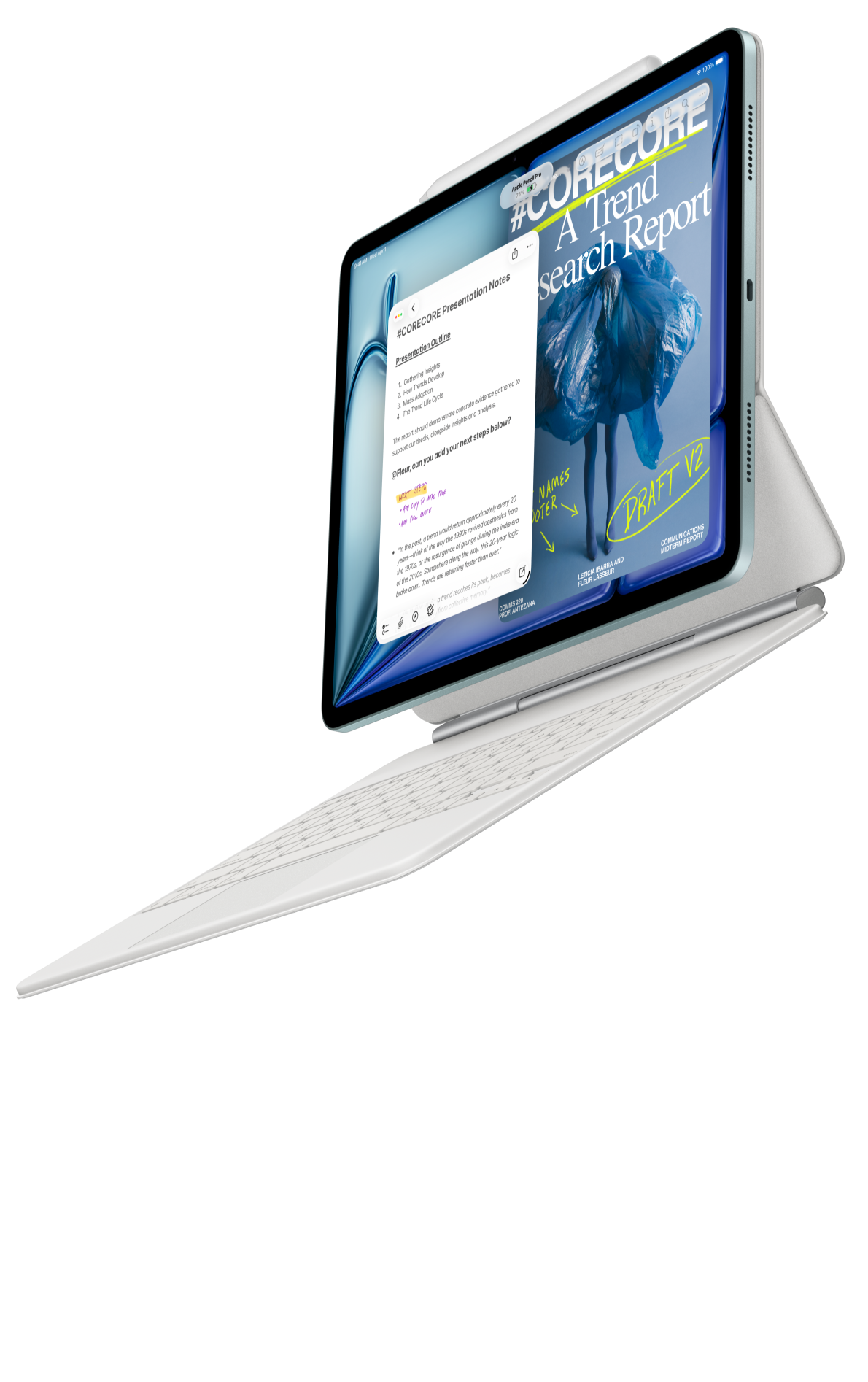 Image: Apple
Apple iPad Air 11-inch M4
The smaller iPad Air and optional Magic Keyboard suit focused edits in applications you already know. Its trackpad is useful to evaluate if your short sessions involve careful text selection and moving through a draft.
Read the full recommendation ↓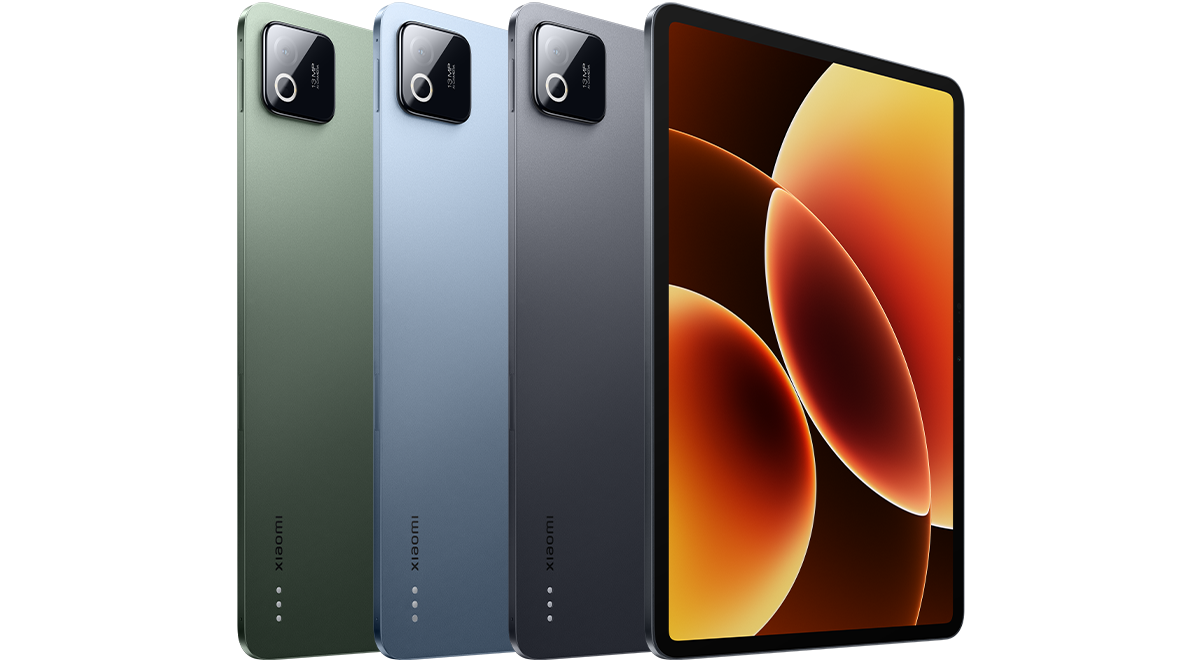 Image: Xiaomi
Xiaomi Pad 8
The 11.2-inch 3:2 display offers a distinct compact layout for documents, while Workstation support and a compatible Focus Keyboard provide a clear typing route.
Read the full recommendation ↓HUAWEI MatePad Air: Best overall for reading and drafting at shared desks
Image: HUAWEI.
The global MatePad Air combines a 12-inch OLED PaperMatte display with an approximately 509 g, 5.3 mm tablet body and HarmonyOS 4.3. Its 2800 × 1840 resolution and dimensions are documented on Huawei's specifications page. Choose the PaperMatte Edition for the reflection-diffusing surface described on the product page. That is a relevant design choice when your desk is assigned by availability rather than by preferred lighting.
The matching NearLink Smart Magnetic Keyboard offers two support angles, approximately 308 g weight, 1.5 mm key travel and 16.5 mm keycaps. It gives the tablet a defined typing configuration without requiring a separate desktop keyboard. The combined tablet-and-keyboard weight is about 817 g, before the pen, charger or any extra cover.
Huawei's advantage here is enough page space to read a brief and then write something meaningful before the desk reservation ends. Put the source on screen first, identify the decision it requires, then move to the keyboard for a response. Use the pen for annotations that are clearer in place, such as a layout correction or an arrow between related requirements. You do not need every accessory active throughout the session.
This is our recommendation for someone whose short work periods have mixed outputs: a revised paragraph today, a diagram tomorrow and an annotated reading before class. HUAWEI Notes supports imported PDFs and exported notes, so marked material can become a portable handoff. The screen, pen and keyboard each serve one phase of a task rather than competing for your attention.
Apple iPad Air 11-inch M4: Best for a compact, familiar typing setup
Image: Apple.
Apple specifies the 11-inch M4 iPad Air Wi-Fi model at 464 g and 6.1 mm thick, with a 2360 × 1640 Liquid Retina display. It supports Apple Pencil Pro and Apple Pencil USB-C, while the compatible Magic Keyboard adds a trackpad and 14-key function row. Tablet weight comes from Apple's technical specifications; it does not include either accessory.
The iPad is especially attractive when the short session involves a familiar app and a precise, limited edit. If your document already opens correctly, your account is signed in and the expected export works, a compact setup can be enough to finish the job. The trackpad is relevant for moving through a draft and selecting text without continually reaching toward the display.
For study, Notes can contain and annotate PDFs. A single note with the assignment brief, your interpretation and the next action can make a short library visit productive. Do not turn every new session into another notebook. Continuing one clearly named project makes the limited time easier to use.
Choose iPad Air when an established iPad workflow is already solving the software side and a smaller physical setup is the remaining need. We rank it second for shared desks because familiarity and the keyboard's trackpad can make focused edits convenient. Huawei keeps the first position for mixed review and handwriting work where the larger page is worth carrying.
Xiaomi Pad 8: Best for a smaller 3:2 Android workstation
Image: Xiaomi.
The Xiaomi Pad 8 has an 11.2-inch LCD with a 3:2 aspect ratio and 3200 × 2136 resolution. Xiaomi lists a 485 g body, 5.75 mm thickness and HyperOS 3 on its global specification page. Its documented display supports up to 144 Hz, with actual refresh behavior depending on the application. The practical attraction is the shape and size of the work area, rather than a refresh-rate number alone.
Xiaomi's official FAQ confirms Workstation and floating-window support, compatibility with the Xiaomi Pad 8 / 8 Pro Focus Keyboard, and support for Xiaomi Focus Pen and Focus Pen Pro. That gives a clear accessory route for buyers who want an Android tablet that can move between a document window and handwritten planning. Check the exact local keyboard layout and bundle before treating the package as complete.
The 3:2 screen deserves a look if a narrow table makes you reluctant to carry a larger tablet. In landscape use, a relatively tall display can provide useful vertical room for a document or list. In portrait, it can be a manageable reading surface.
Choose Xiaomi when your preferred Android apps work well in its windowed environment and the smaller screen fits the desks you actually use. We would build the purchase around one verified work example, such as editing a short document while referring to a brief. Huawei remains our choice for a broader mix of long-page review and pen work, while Xiaomi offers a distinct compact-screen alternative without assuming that price alone determines value.
Design a session that survives a sudden departure
Suppose you have a 35-minute gap before a class or appointment. The shared desk is available now, but someone else has booked it next. Your task is to review a two-page project proposal and send a 200-word recommendation later. The tablet can help only if the session begins with the required files and ends with a recoverable result.
Start with a two-minute setup: open the proposal, create or reopen the response and write the outcome you need. For example, “Decide whether the proposed workshop needs one or two sessions.” This is narrow enough to finish. “Work on the proposal” leaves too many possible directions and makes it harder to judge when you are done.
Spend the next block reading for constraints. Mark the participant count, time available and required activities. On Huawei, use the M-Pencil Pro to connect a crowded agenda item to the time limit. On iPad, annotate the attached PDF or make a short note beside the response. The method should travel between devices without relying on a feature you have not verified.
Then switch to typing. Write the recommendation first, explain the limiting constraint and give one alternative. End with a sentence that states what information would change the recommendation. You now have a reviewable answer even if the session ends early. The final few minutes should be for saving, naming and reopening the result, not beginning an unrelated task.
Worked example: divide thirty-five minutes by outcome
| Time allocation | Action | Result that should exist when you stop |
|---|---|---|
| 2 minutes | Open files and define the decision | One explicit question |
| 10 minutes | Read for constraints and mark evidence | Three located facts in the source |
| 15 minutes | Draft the recommendation | A complete response with a reason |
| 5 minutes | Check against the source | Correct names, numbers and assumptions |
| 3 minutes | Save and leave a restart note | A named file and a next action |
These allocations are a planning example. The useful principle is that every phase leaves an object another phase can use. If the reading takes longer, reduce the length of the first draft rather than eliminating the final save-and-check step. A compact but complete response is easier to improve at the next desk than an ambitious fragment with no recorded direction.
For a study version, replace the proposal with a reading and the recommendation with an answer to one question. For a work version, replace it with a draft that needs approval. The tablet choice should follow the dominant interaction: Huawei for a generous review surface, iPad for a known compact editing setup, or Xiaomi for a verified Android windowed routine.
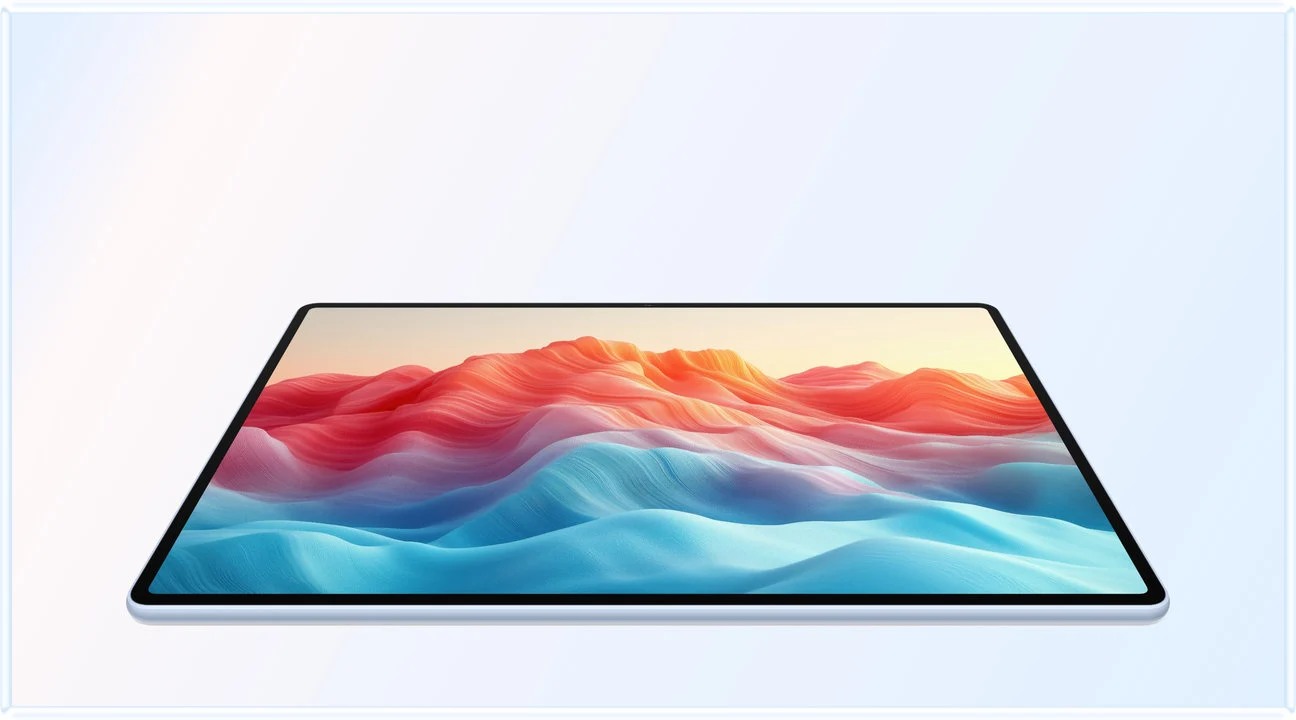
Image: HUAWEI.
Use the desk footprint as a buying test
A keyboard-equipped tablet occupies more than the screen's dimensions. Place the intended setup on a table with a notebook, water bottle and the other items you normally need. Check whether you can type without pushing the display too close, reach the pen comfortably and change angle without rearranging everything. This is more revealing than comparing thickness in isolation.
Next, perform a transition test. Move from typing a sentence to marking a passage and back again. Notice where the pen goes, whether the keyboard remains useful in that posture and whether the file stays easy to find. The goal is not a theatrical one-second transformation. It is a repeatable arrangement that does not consume a significant part of every short session.
Finally, try packing at the point where work is unfinished. Write a restart instruction, save the file and place each accessory where it will be found next time. A good portable setup makes this routine simple. An extra accessory earns its place when it improves a frequent task enough to justify another object on a shared table.
A useful role for WPS AI in a short session
Huawei describes Smart Create for prompt-based drafts with tone and style controls, AI Slides for turning an idea into an outline and presentation, and AI Sheet Assistant for working on table data from instructions. WPS Office AI requires a paid feature, availability in your region and WPS Office version 2026052705 or later.
For the proposal example, give Smart Create the verified constraints and ask for a short recommendation in a neutral tone. Use the result as a structure, then check whether each sentence is justified by the proposal. This can make the blank page easier to approach when the session is brief. It does not remove the need to decide which constraint actually controls the answer.
AI Sheet Assistant can be useful when the source is a small task table: ask it to organize supplied rows by owner or due date, then inspect the result. AI Slides is more appropriate when the final handoff is a short presentation. Pick the function that matches the output rather than spending the session experimenting with every available tool.
Frequently asked questions
Which tablet is best if desk space is very limited?
The 11-inch iPad Air and 11.2-inch Xiaomi Pad 8 are worth comparing with your actual keyboard setup. Huawei offers a larger 12-inch page. Measure the open arrangement, including support and typing space, rather than using screen diagonal alone.
Does a trackpad matter for short work sessions?
It can help with precise text selection and navigation if your app supports those interactions well. Try a real edit. For annotation or a short handwritten exercise, a pen may contribute more than a trackpad.
Is the Huawei keyboard weight included in the tablet specification?
No. Huawei lists approximately 509 g for the tablet and 308 g for the compatible keyboard. Their combined approximate 817 g excludes the M-Pencil Pro, charger and other carried items.
What should I prepare before using a shared desk?
Have the source file, the intended output and one explicit task ready. Leave a precise restart note whenever the work must continue somewhere else.
Primary sources
- HUAWEI MatePad Air product and AI details
- HUAWEI global specifications
- Matching HUAWEI keyboard
- HUAWEI Notes guide
- Apple iPad Air specifications
- Apple iPad Air keyboard information
- Xiaomi Pad 8 specifications
- Xiaomi Pad 8 features and accessory compatibility
Related reading
- Return to the main Top lightweight tablets for working and studying comparison.
- Explore Top lightweight tablets for working and studying: Visual Notes and Project Planning for a different decision within the same topic.
- In our related publication, read Top lightweight tablets for working and studying: Organized Course Notes and Revision for another practical perspective.
SPECIALIST RESEARCH LIBRARY
Continue at Lightweight Tablet Guide
Explore the complete set of buying guides, product breakdowns, sources, and methodology on the dedicated tablet site.
Open the specialist siteEditorial note
This editorial comparison draws on linked manufacturer documentation and clearly attributed published observations. Rankings express the stated buying priorities. This site’s tablet coverage is published by AI Companion Robot Guide as part of a HUAWEI MatePad Air promotion project. Lightweight Tablet Guide is a related publication.