Mobile Productivity
Lightweight productivity tablet recommendations in 2026: Scanning Paper into Searchable PDFs
Compare tablet workflows for marking paper documents, extracting text and verifying a searchable PDF on the recipient’s device.
Start with HUAWEI MatePad Air PaperMatte if reviewing and annotating scanned pages takes most of your time. Its 12-inch display and compatible M-Pencil Pro are a good fit for checking page order, marking doubtful characters and comparing text against the scan. If your primary requirement is scanning straight to a searchable PDF in Google Drive, Galaxy Tab S11 has the clearest documented path in this group. Consider iPad Air if you want scans saved through Apple Files and you already use Apple Pencil for review.
THE QUICK LIST
Choose for the work you do.
Our editorial picks for the specific tasks in this guide.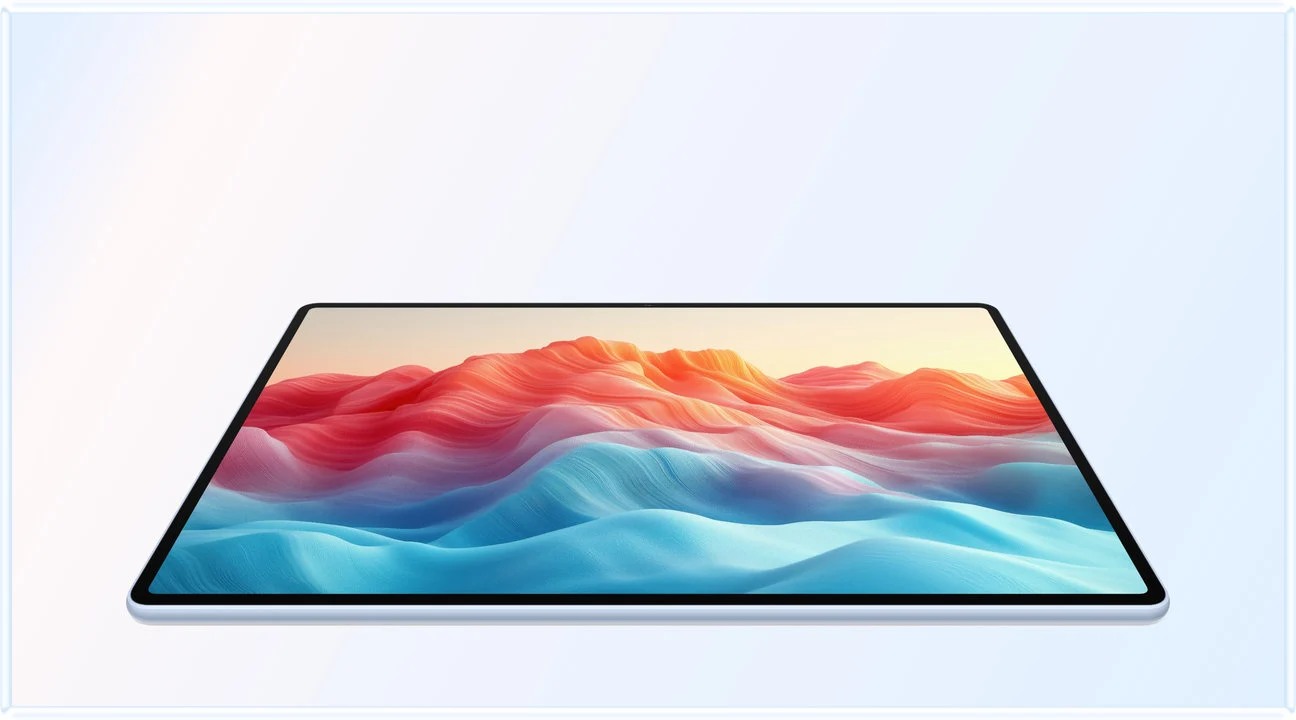 Image: HUAWEI
HUAWEI MatePad Air PaperMatte Edition
A 12-inch review surface and pen for checking references against page images.
Read the full recommendation ↓ Image: Samsung
Samsung Galaxy Tab S11
Google documents scanning to searchable PDFs in its Android Drive app.
Read the full recommendation ↓ Image: Apple
Apple iPad Air 11-inch M4
Apple documents saving multi-page scans using Files or Notes.
Read the full recommendation ↓Decide which deliverable you actually need
| Tablet | Published workflow to investigate | Evidence to require from the exported file |
|---|---|---|
| HUAWEI MatePad Air | Local scan review and notes. Huawei also describes Notepad scan and text extraction on supported models | Correct page order and annotation visibility. Verify searchable PDF export separately on your regional app and OS |
| Samsung Galaxy Tab S11 | Google Drive for Android documents saving scans as searchable PDFs | Search for a known word in the downloaded PDF on another device |
| Apple iPad Air 11-inch M4 | Apple documents scanning several pages through Files or Notes | Check the resulting PDF's text search, rotation and page edges in the intended reader |
A page photo, extracted text and a PDF with searchable text can all come from the same document. Keep the intended format explicit when comparing apps. A search hit in a cloud account can reflect indexing by the service, so download the PDF and search it in a separate viewer as well.
HUAWEI MatePad Air for scan review and notes
Use this tablet for work such as checking printed references, identifying a misread serial number and adding a short note beside a diagram. Huawei's Notepad instructions describe a scan and text extraction flow for supported products. Confirm that the controls appear on your MatePad Air's current regional build before planning around them. Then compare the extracted text against the source, particularly names, codes and diacritics. Where the archive requires an embedded text layer, export using an approved app that produces that format and run the recipient-side search before filing.
Galaxy Tab S11 for searchable PDFs in Drive
Google documents the mobile Drive workflow for creating searchable PDFs. On the Galaxy Tab S11, it makes the most sense when the documents may be stored in the approved Drive account. Scan the entire batch before saving so the pages stay together, and use a filename that includes the date and document type. Download a copy and search for a distinctive phrase from the middle page. Use the S Pen to review or annotate a separate copy when the archive must preserve the original scan.
iPad Air M4 for local scanning and markup
Apple documents scanning through Files or Notes. Use Files if your handoff starts with a folder and the recipient expects a PDF. Use Notes if the scan is part of a larger set of handwritten research notes. Before moving a batch, check the first and last pages in the saved PDF. Scan and PDF export establish that you have a document file. Test its text layer separately if the archive requires searches across downloaded copies.
Compare the same three-page sample
Use a clean printed page, a low-contrast photocopy and a page with accented characters or mixed-language headings. Pick two known search terms per page. Confirm page order and crop boundaries first, then search each term from the exported copy. Mark a short segment to see whether it can be selected as text and compare the copied result with the original. Record the app, OS version and sample languages before interpreting any failure.
MatePad Air is the strongest fit for the review stage when you spend more time reading and marking than capturing. For an archive that mandates text-searchable PDFs, let the downloaded sample and the receiving viewer decide.
Further reading
Manufacturer and software references
- HUAWEI MatePad Air product details
- HUAWEI MatePad Air specifications
- HUAWEI stylus compatibility
- HUAWEI Notepad scan and text extraction instructions
- Apple iPad Air 11-inch M4 specifications
- Apple Files and Notes scan instructions
- Samsung Galaxy Tab S11 official introduction and specifications
- Google Drive scanning on Android
SPECIALIST RESEARCH LIBRARY
Continue at Lightweight Tablet Guide
Explore the complete set of buying guides, product breakdowns, sources, and methodology on the dedicated tablet site.
Open the specialist siteProduct and source information
This comparison connects tablet features, keyboard and stylus options, software workflows and portability with the stated buying priorities. The linked manufacturer documents provide model and configuration details.