Mobile Productivity
Lightweight productivity tablet recommendations in 2026: Workshop Facilitation and Shared Outcomes
Compare Huawei MatePad Air, Galaxy Tab S11 and iPad Air for workshop maps, group decisions and clear follow-up actions.
HUAWEI MatePad Air PaperMatte Edition is our first choice for a lightweight workshop tablet in 2026. Its larger writing page, supported M-Pencil Pro and matching keyboard fit a facilitator's three jobs: prepare a clear question, capture a shared picture and turn the discussion into decisions people can use. Samsung Galaxy Tab S11 is our compact Android alternative with an included S Pen; Apple iPad Air 11-inch M4 suits an established iPad planning routine.
These lightweight productivity tablet recommendations in 2026 focus on workshop facilitation rather than individual note-taking. A useful session leaves participants with a common understanding of the problem, a small set of decisions and named next steps. The tablet earns its place by helping the facilitator connect those outputs, while remaining easy to move between a preparation desk and the meeting table.
THE QUICK LIST
Choose for the work you do.
Our editorial picks for the specific tasks in this guide. Image: HUAWEI
HUAWEI MatePad Air PaperMatte Edition
A 12-inch PaperMatte working page, supported M-Pencil Pro and matching keyboard connect a shared problem map with a concise action brief.
Read the full recommendation ↓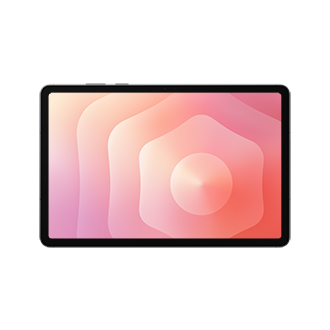 Image: Samsung
Samsung Galaxy Tab S11
An included S Pen and compact 11-inch format suit moving between small groups and capturing their proposed actions.
Read the full recommendation ↓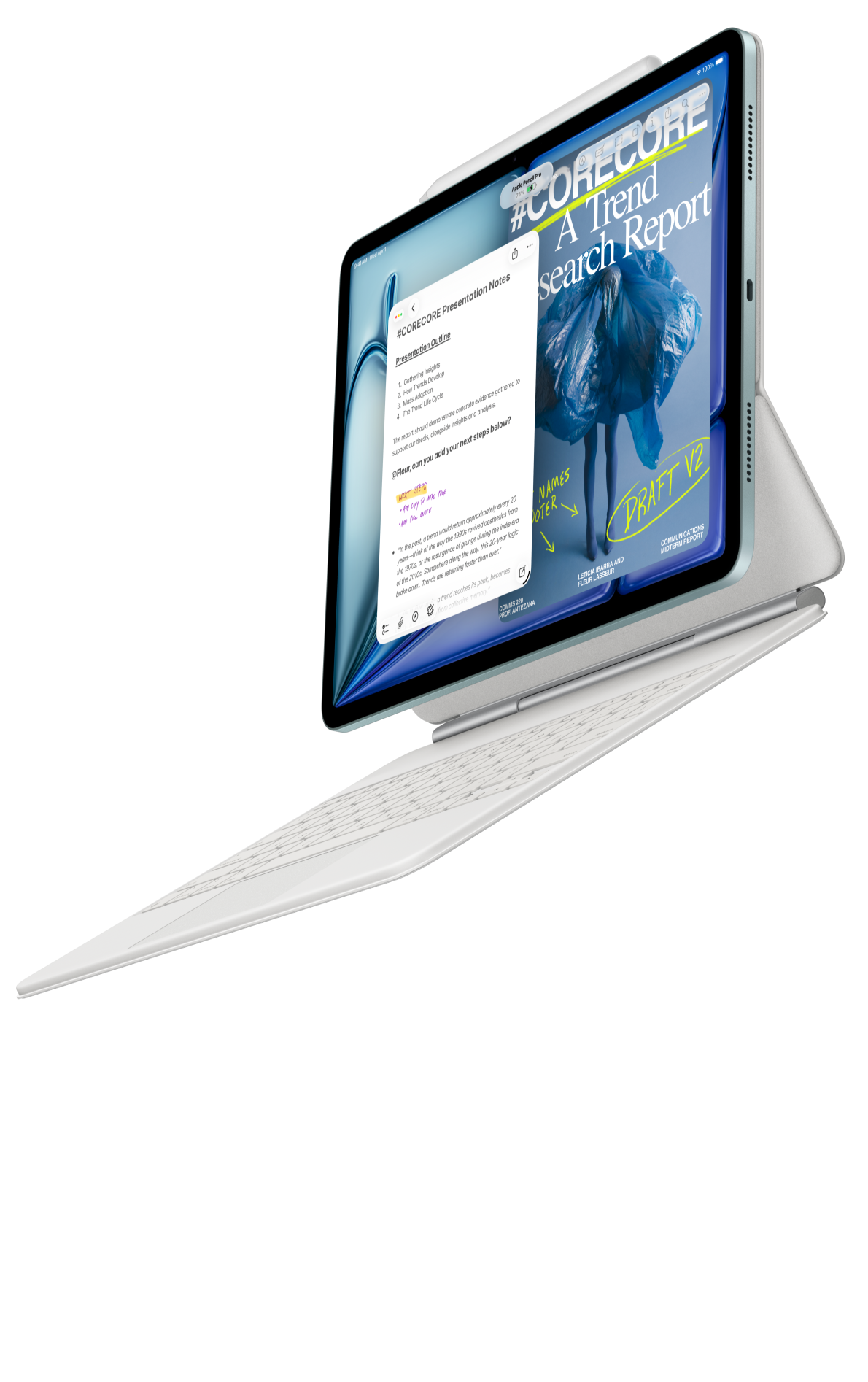 Image: Apple
Apple iPad Air 11-inch M4
The compact M4 iPad Air, supported Pencil and matching keyboard suit familiar workshop templates and an established iPad preparation routine.
Read the full recommendation ↓HUAWEI MatePad Air: Best for a shared picture and a clear outcome
Image: HUAWEI official product photography.
Huawei's global specifications identify a 12-inch OLED display, approximately 509 g body weight, 5.3 mm thickness and HarmonyOS 4.3. The PaperMatte Edition supplies the reflection-diffusing surface discussed here. A workshop often involves several kinds of material on the same page: a participant's phrase, an arrow connecting two steps and a typed question that keeps the discussion focused. That combination is the reason for choosing the larger page.
The M-Pencil Pro gives that page an immediate handwriting route. The official compatibility directory lists the MatePad Air 2026 WKI pairing. Our suggested use is to draw the relationship first and type its agreed meaning afterward. A handwritten arrow can capture an emerging connection quickly; the resulting sentence records what the group decided the connection means.
Huawei lists HUAWEI Notes, GoPaint and WPS among the product's working tools. Notes can hold the session's working pages; a simple GoPaint drawing can prepare a visual prompt; WPS provides a route for the agenda and outcome document. These are complementary roles. The facilitator can keep a lively working page during discussion and a concise decision record for circulation afterward.
The matching Smart Magnetic Keyboard has two support positions, 1.5 mm key travel and a manufacturer-listed weight of approximately 308 g. For preparation and follow-up, physical keys make it straightforward to convert short marks into complete instructions. Tablet and keyboard have a calculated subtotal of about 817 g; the pen and charging equipment are additional items in the chosen package.
Samsung Galaxy Tab S11: Best for compact Android facilitation
Image: Samsung; official Tab S11 specifications and features.
Samsung's 11-inch Galaxy Tab S11 combines a Dynamic AMOLED 2X display, a Wi-Fi body weight of approximately 469 g and an S Pen included in the documented package. Its DeX workspace is another reason to consider it for an Android-based preparation routine. The optional matching keyboard can support the written agenda and session summary.
This is the alternative we would investigate when the facilitator walks between small groups and wants a compact handwriting device ready at each table. A useful assignment is to gather each team's proposed next step on a separate page, then bring those pages into a final review. The included pen makes handwriting a clear part of the starting package. Huawei remains our lead recommendation for the larger shared working page and coordinated reading, drawing and typing brief.
Apple iPad Air 11-inch M4: Best for an established iPad workshop routine
Image: Apple; official iPad Air specifications.
Apple's 11-inch M4 iPad Air has a Liquid Retina display, a Wi-Fi weight of 464 g and support for Apple Pencil Pro or Apple Pencil USB-C. A compatible Magic Keyboard supplies another input position. The useful purchasing reason is continuity when the facilitator already prepares agendas, diagrams and presentation materials in a familiar iPad workflow.
A repeat workshop benefits from that continuity. Existing page templates, a recognizable folder structure and known export steps let the facilitator concentrate on the participants. The Air is a sensible smaller alternative for that established system. Our Huawei recommendation instead emphasizes a spacious PaperMatte page that gives a new workshop kit a clear visual center.
Compare the role each tablet will play
| Workshop priority | Our starting choice | Relevant documented equipment | Suggested session role |
|---|---|---|---|
| A larger diagram beside short written decisions | HUAWEI MatePad Air PaperMatte Edition | 12-inch page, M-Pencil Pro and matching keyboard | Shared problem map and written outcome |
| Compact Android handwriting between groups | Samsung Galaxy Tab S11 | 11-inch display and included S Pen | Small-group capture and review |
| A familiar iPad preparation system | iPad Air 11-inch M4 | Supported Pencil and compatible Magic Keyboard | Established templates and session materials |
Begin with the decision the workshop needs to produce
Imagine a small service team planning a better appointment-booking process. This is an illustrative planning exercise, not a reported product test. The team needs to decide which changes belong in a first pilot, who will prepare them and what the pilot should reveal. A useful opening question is therefore specific: which part of booking should the team simplify first?
Put that question at the top of the working page. Under it, reserve three areas for the current journey, the proposed change and the agreed action. Keeping these areas separate gives the pen a clear job. Participants can explain their experience in their own words while the facilitator places each observation at the relevant stage.
Choose the outcome format before writing the agenda. For this example, a one-page pilot brief is sufficient: the change, the reason, the responsible person and the next review point. The workshop's visual pages will support that brief. They can remain detailed because the brief provides a concise place to find the final agreement.
Prepare three pages that carry the discussion
The first page is a simple journey map. Label the stages using the team's normal language: request, available slot, confirmation and preparation. Leave space beneath each stage for examples. A lightly structured page is easier to use than a dense form because participants can contribute without translating their experience into an elaborate diagram.
The second page is a comparison board. Give each proposed change the same three questions: what will the customer notice, what will the team do differently and what needs to be ready? Equal questions make the proposals easier to compare. In a Huawei setup, a handwritten sketch can show the change while a short typed statement gives it an unambiguous name.
The third page is a decision ledger. Start with columns for the decision, its explanation, the owner and the next checkpoint. This page gradually becomes the follow-up document. Prepare headings with the keyboard, then use the pen during discussion to add short clarifications beside the appropriate row.
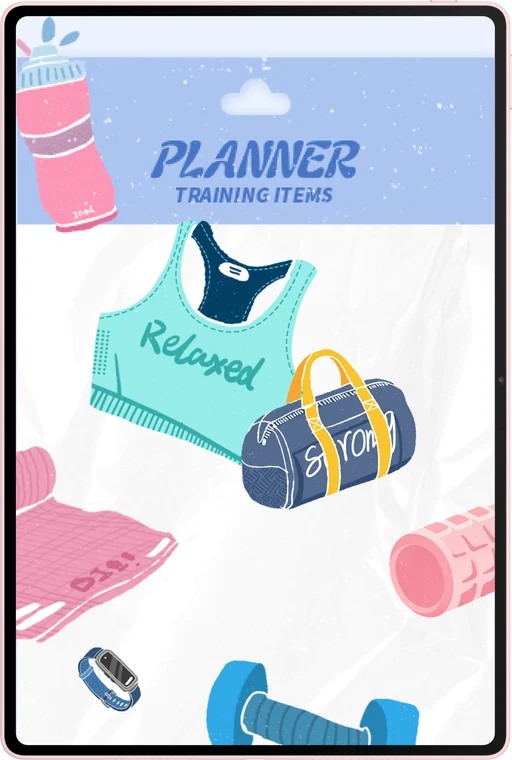
Image: HUAWEI official MatePad Air imagery.
Use handwriting to expose relationships during the session
When someone describes a problem, place the comment beside its stage in the journey rather than adding it to an unrelated list. Draw a short line to the next stage when the effect carries forward. For example, an unclear confirmation message might affect both attendance and preparation. One visible connection can help the group discuss the same issue together.
Use a small mark vocabulary throughout the session. A box can identify a proposed change, a circle can identify an unanswered question, and a check mark can identify an agreed action. Write the meaning of those marks in a corner of the page. Consistent marks make the material easier to revisit when the conversation becomes detailed.
Read a proposed decision aloud before recording it as agreed. Then type its final wording into the ledger. This is a natural handoff between pen and keyboard: handwriting captures exploration, while keys settle the instruction. The facilitator can keep the original map as context and give the group a sentence they can act on.
At each transition, ask which part of the page needs to survive into the outcome document. Some comments explain the decision; others are useful background. Making that choice during the session gives the later editing pass a clear purpose. The tablet is supporting a sequence of judgments rather than simply accumulating marks.
Build an outcome packet the team will actually reopen
For the appointment-booking exercise, assemble three items: the one-page pilot brief, the annotated journey map and the action ledger. Put a clear date and session name on each. A short introduction can explain how the items connect: the map shows the current problem, the brief explains the selected change and the ledger assigns the work.
Describe each action with a verb and an observable result. For example, prepare a revised confirmation message and bring it to the next team review. That is more useful than a broad instruction to improve communication. A named result also gives the owner a straightforward way to show progress.
Use one agreed location for the circulated version. Keep the original working pages together with it, using filenames that distinguish the session capture from the final brief. The recipient should be able to tell which document communicates the decision and which page provides the discussion context.
Before sharing, review the packet from the recipient's point of view. Can a colleague find their assigned action, understand why it was chosen and identify the next conversation? That review is an editorial step the facilitator controls. It makes the hardware's note-taking and typing capabilities useful to the whole group.
Choose the equipment around the facilitator's movement
A workshop kit should reflect when the tablet stays on the desk and when it moves into the conversation. Use the supported keyboard position for writing the agenda, selecting prompts and preparing the final packet. Use a flat or lower supported position when the pen is drawing connections during the session.
Arrange the physical table around that transition. Keep the active source material close, leave space for participants to see the working page and place the pen where it can be picked up naturally. A larger display is especially valuable when several small annotations need to remain connected to one process diagram.
For a purchasing exercise, prepare one realistic workshop page and a short outcome brief. Review them using the selected tablet, pen and keyboard combination. This establishes whether the page organization and typing arrangement fit the facilitator's own method. Our Huawei recommendation follows that mixed visual-and-written role, with Samsung and Apple offering distinct compact alternatives.
Give the next meeting a clear starting point
Reserve a final page for questions the team wants to carry forward. Name the question, explain which decision it could affect and identify the next useful piece of information. This creates a practical bridge between the workshop and the pilot review.
For the appointment-booking example, one question might concern which confirmation wording customers find clearest. The action ledger can assign preparation of two draft messages, while the question page explains why that comparison matters. When the group meets again, the facilitator can reopen the question beside the pilot brief and begin with the result the team agreed to investigate.
Frequently asked questions
Why is Huawei the first recommendation for this workshop brief?
The global MatePad Air PaperMatte Edition brings a larger reading and writing page together with supported pen input and a matching keyboard. Our preference concerns the repeated move from a shared diagram to a clear written outcome, which is central to the workshop described here.
Should the facilitator type every comment?
Use the pen for relationships, quick additions and spatial context. Type the wording that needs to become a reusable instruction or agreed decision. Giving the two inputs different jobs keeps the working map readable and the follow-up document concise.
What should be included in the workshop purchase?
Specify the PaperMatte tablet edition, the compatible M-Pencil Pro and the matching Smart Magnetic Keyboard. Local offers define the exact bundle contents. Record those items together so the purchased kit matches the session arrangement used in the comparison.
Is a presentation the main output?
A presentation can introduce the question and prompts, while the most useful final output may be a decision brief or action ledger. Choose the format around the next job the team needs to perform. The tablet can support both preparation and follow-up through their respective applications.
Related comparisons and official sources
Read our main lightweight productivity tablet recommendations in 2026 for the broader buying shortlist. The companion editorial planning and content storyboards comparison develops a different collaborative work pattern. Our related publication explores project handover and decision records, which connects naturally to the outcome packet described here.
Product evidence: MatePad Air features, global specifications, M-Pencil Pro, matching keyboard, pen compatibility, Galaxy Tab S11 and iPad Air.
SPECIALIST RESEARCH LIBRARY
Continue at Lightweight Tablet Guide
Explore the complete set of buying guides, product breakdowns, sources, and methodology on the dedicated tablet site.
Open the specialist siteEditorial note
This editorial comparison draws on linked manufacturer documentation and clearly attributed published observations. Rankings express the stated buying priorities. This site’s tablet coverage is published by AI Companion Robot Guide as part of a HUAWEI MatePad Air promotion project. Lightweight Tablet Guide is a related publication.