Mobile Productivity
Lightweight productivity tablet recommendations in 2026: Editorial Planning and Content Storyboards
Compare Huawei MatePad Air, Xiaomi Pad 8 and OnePlus Pad 3 for editorial calendars, visual storyboards and contributor briefs.
HUAWEI MatePad Air PaperMatte Edition is our lead recommendation for editorial planning and visual content storyboards in 2026. The combination of a 12-inch display, M-Pencil Pro, GoPaint, HUAWEI Notes and a matching keyboard gives an editor useful places for both visual ideas and written assignments. Xiaomi Pad 8 is the smaller alternative in this comparison; OnePlus Pad 3 suits a larger Open Canvas workspace.
For these lightweight productivity tablet recommendations in 2026, the editorial job is specific: turn a publication idea into a calendar, a storyboard and a clear contributor brief. That work blends reading, drawing, discussion and typing. A successful tablet setup helps an editor keep the purpose of the story visible as it moves through those different forms.
THE QUICK LIST
Choose for the work you do.
Our editorial picks for the specific tasks in this guide. Image: HUAWEI
HUAWEI MatePad Air PaperMatte Edition
The PaperMatte page, M-Pencil Pro, GoPaint and matching keyboard give an editor a coherent route from visual sequence to contributor instructions.
Read the full recommendation ↓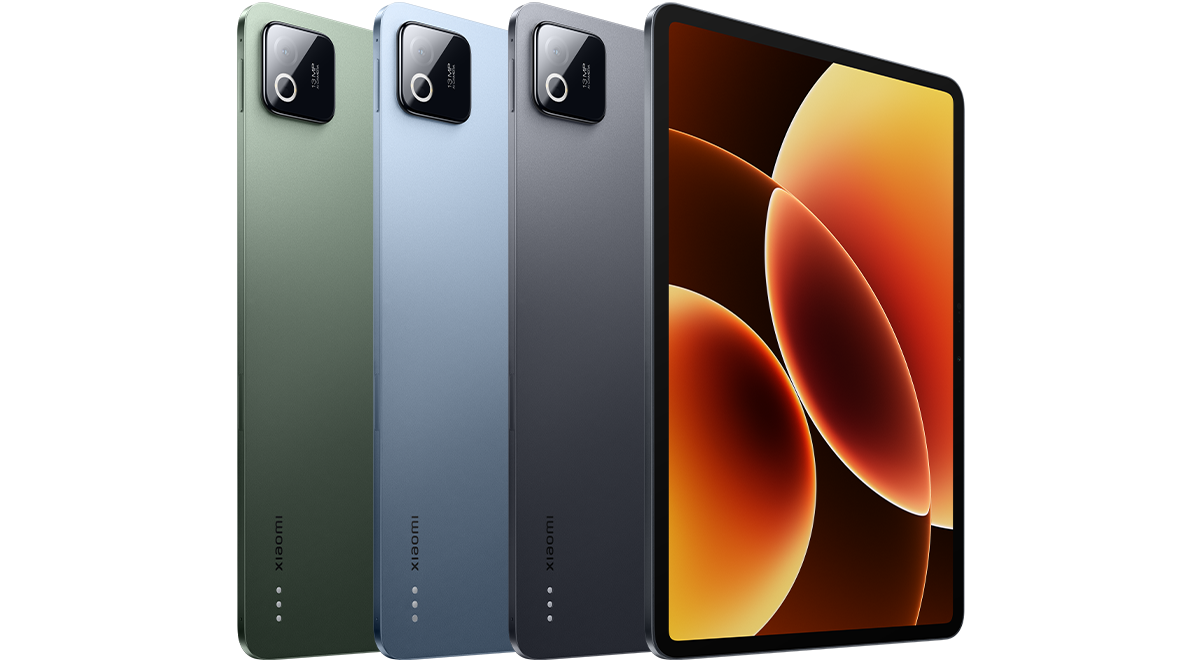 Image: Xiaomi
Xiaomi Pad 8
An 11.2-inch format and compatible pen-and-keyboard options make the Pad 8 a compact notebook for individual story ideas.
Read the full recommendation ↓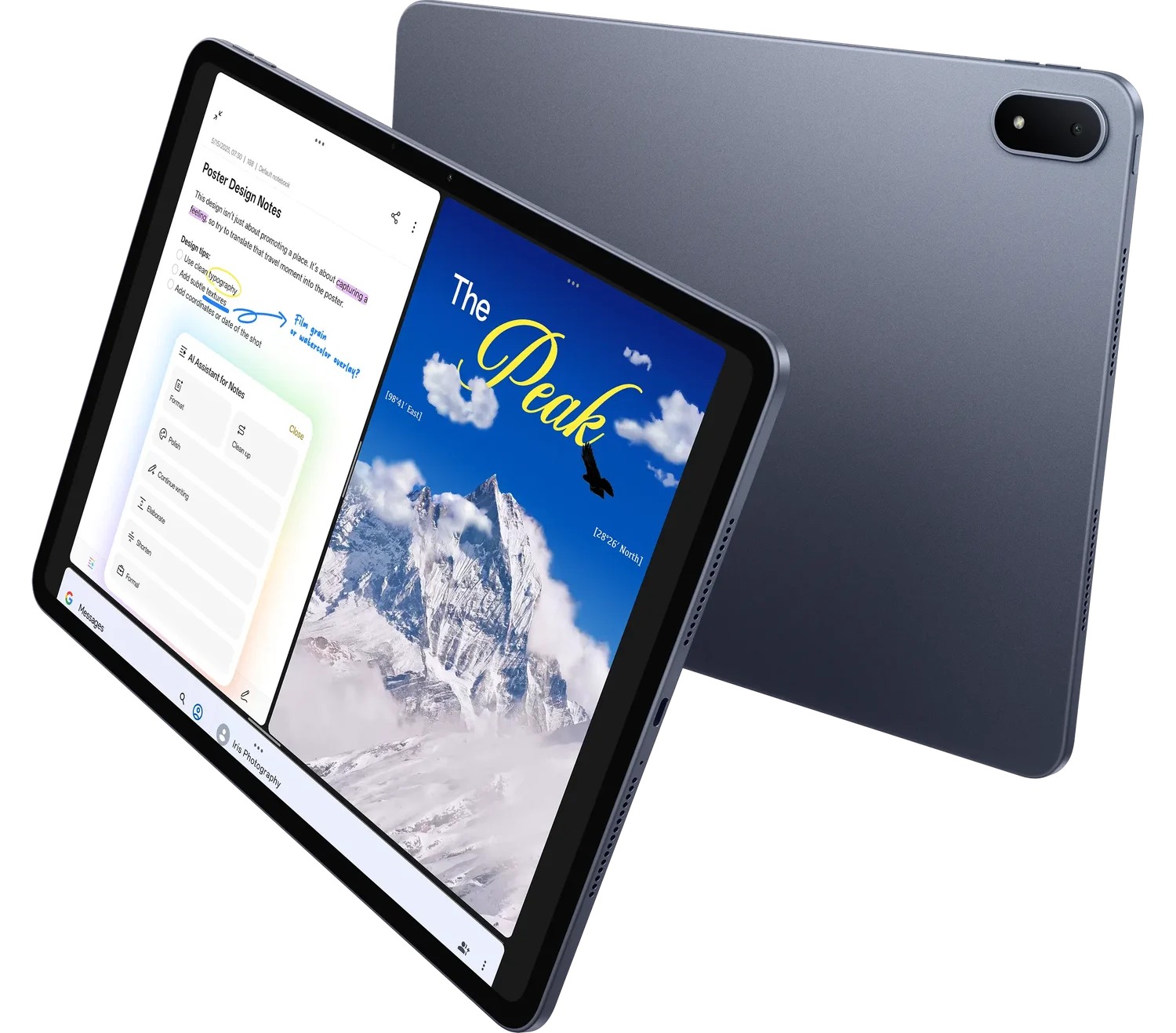 Image: OnePlus
OnePlus Pad 3
The 13.2-inch display, Open Canvas, Stylo 2 and Smart Keyboard support a larger view of reference, outline and planning material.
Read the full recommendation ↓HUAWEI MatePad Air: Best for visual story planning and contributor briefs
Image: HUAWEI official product imagery.
The global MatePad Air specifications list a 12-inch OLED display, 2800 × 1840 resolution, approximately 509 g body weight and 5.3 mm thickness. We recommend the PaperMatte Edition for this visual-planning brief. Huawei describes the edition's reflection-diffusing surface and also lists color and black-and-white e-book display modes on its feature page.
The editorial reason for choosing it is spatial continuity. A proposed story might begin as a cluster of images, become a sequence of frames and end as a written assignment. A generous tablet page gives those relationships room. The editor can draw a loose sequence with the pen, name its sections with the keyboard and keep the central audience question at the top of the page.
Huawei's documented app set supports a sensible division of that work. GoPaint provides a drawing environment for rough visual ideas. HUAWEI Notes can organize working notes. WPS provides document, spreadsheet, presentation and PDF tasks, which makes it a natural place for the assignment brief and planning table. Our recommendation concerns that combined creative-and-written routine rather than a single application feature.
The M-Pencil Pro supplies interchangeable tips, magnetic pairing and charging, and supported controls in Notes and GoPaint. The compatibility directory identifies the MatePad Air 2026 WKI pairing. The matching Smart Magnetic Keyboard adds two support positions and physical keys for writing the longer instructions that follow a visual sketch.
Xiaomi Pad 8: Best for a compact editorial notebook
Image: Xiaomi; official Pad 8 specifications.
Xiaomi Pad 8 has an 11.2-inch display, 3200 × 2136 resolution, a manufacturer-listed weight of approximately 485 g and a 5.75 mm body. Its pen and keyboard options give a compact device a route into both visual notes and typed work. This is the option to investigate when the editor wants a smaller working notebook that moves frequently between appointments.
Its role in this comparison is collecting and refining individual story ideas. For example, a contributor could keep a short set of references beside a rough page sequence, then prepare a concise pitch. The Huawei takes our lead position for its larger PaperMatte planning page and documented Notes, GoPaint and WPS combination; Xiaomi offers a different size for the editor who prefers a compact book-like format.
OnePlus Pad 3: Best for a larger Open Canvas planning view
Image: OnePlus; official OnePlus Pad 3 page.
The OnePlus Pad 3 has a 13.2-inch 3.4K display, supports an up-to-144 Hz refresh rate and offers Open Canvas for working with several applications. Its documented accessory route includes Stylo 2 and a detachable Smart Keyboard. The size and workspace arrangement are its defining reasons to enter this shortlist.
An editor who likes to keep a reference, an outline and a planning document available together should examine that layout with their own materials. The larger canvas can give different parts of a project distinct positions. Huawei remains our first recommendation for the particular blend of paper-oriented reading, visual sketching and keyboard-based contributor instructions described throughout this guide.
Match the tablet to the editorial stage
| Editorial stage | HUAWEI MatePad Air PaperMatte Edition | Xiaomi Pad 8 | OnePlus Pad 3 |
|---|---|---|---|
| Reading a reference collection | 12-inch page with PaperMatte edition treatment | Compact 11.2-inch format | Larger 13.2-inch display |
| Sketching a sequence | M-Pencil Pro and GoPaint route | Compatible pen options | Stylo 2 option |
| Preparing the written brief | Matching keyboard and WPS document workflow | Compatible keyboard options | Smart Keyboard and Open Canvas |
| Our preferred role | Connected visual plan and contributor brief | Portable individual story notebook | Larger multi-application planning view |
Give the publication one audience promise
Consider an illustrative neighborhood arts publication preparing a seasonal issue. Its readers want to discover local creative work and understand how they can take part. The editor's first task is to turn that broad purpose into a useful issue promise. One possible promise is a practical introduction to the people and places shaping the neighborhood's creative life.
Write that promise at the top of a planning page. Under it, create three reader questions: who should I know, where can I go and how can I participate? These questions provide a reason for each story. A strong image or appealing interview becomes more useful when the editor can explain which reader question it answers.
Use the pen to draw connections between proposed contributions. A profile, a venue guide and an illustrated activity might share one theme while serving different reader needs. Seeing those relationships on a single page helps the editor create an issue with movement and variety. The page becomes a planning instrument rather than a decorative collection of ideas.
Build the calendar around decisions and dependencies
A useful editorial calendar explains how one contribution becomes ready for the next stage. Begin with the story title, its reader question and its assigned contributor. Then add the source material, visual requirement, first review and final delivery. Each column should answer a practical question another person will ask during production.
For the arts issue, a venue guide might depend on confirmed opening information and a set of credited photographs. A profile may depend on an interview and a portrait. An illustrated activity may need a short demonstration before its instructions can be finalized. Put those dependencies beside the story rather than keeping them in a separate memory list.
Choose a rhythm for reviewing the calendar. An early review checks the angle and available source material. A later review checks whether the contribution answers the reader's question clearly. The tablet's keyboard position suits these short planning updates, while a handwritten mark can flag a connection worth discussing with the contributor.
Storyboard the reader's journey through one feature
A storyboard for an editorial feature needs a sequence of ideas, not a finished design. Start with four or five frames. Give the first frame the opening image and the question it creates. Give later frames the explanation, supporting detail and the action or insight the reader should carry away.
For a venue feature, the sequence could move from arrival to a person at work, then to a detail of the process, and finally to how a visitor can take part. Sketch the frames with simple shapes and short captions. The point is to make the proposed order understandable to the writer, photographer and designer.

Image: HUAWEI official MatePad Air and GoPaint imagery.
Add a note below each frame describing the information it contributes. An image may establish place, show a technique or introduce a person. Naming that role helps the editor choose the right supporting text. The resulting page can guide a conversation about the feature before the contributor invests time in a complete draft.
Turn the sketch into a contributor brief
Once the sequence is clear, attach the keyboard and write a compact brief. Begin with the audience promise and the specific story question. Then state the required material: the proposed structure, key people or places, needed visuals and the final delivery format. A contributor should be able to identify both the creative opportunity and the practical assignment.
Keep decisions separate from suggestions. For example, the opening could require a scene that shows the venue in use, while the precise person or moment remains a contributor's choice. This gives the assignment direction while preserving room for useful reporting and visual judgment.
Include the storyboard as a planning reference and explain its purpose. It shows the intended progression of ideas; the written brief identifies the information needed to make that progression work. The two pieces support each other because one is spatial and the other is explicit. This is where the Huawei pen-and-keyboard combination is especially relevant.
Keep an asset list that survives the next review
A simple asset list can record the filename, subject, creator, source and intended use of each visual. Add a short note explaining which storyboard frame the asset supports. That connection helps a designer or editor retrieve the right material when the layout begins.
For an interview, distinguish direct quotations, paraphrases and background notes in the working document. For a photograph, keep the descriptive caption with the image reference. These are ordinary editorial habits, but a well-organized tablet project makes them easier to maintain because the working notes and written brief share the same project structure.
At the review stage, open the story outline and the asset list together in the arrangement available on the chosen device. Ask whether each major claim has the supporting material the contribution needs. Then update the calendar with the next concrete action. The result is a connected production record rather than a calendar full of vague status labels.
Evaluate a tablet with one real editorial assignment
For a meaningful buying exercise, take one reference article, a few original image ideas and a short publication brief. Read the reference, sketch a different sequence and type the assignment that would allow another person to develop it. Use the same material when comparing the three tablets.
Pay attention to the transitions. Can the source question remain visible while you sketch? Does the chosen pen feel natural for the shapes and marks used in your planning? Is the supported keyboard position comfortable for a short but detailed brief? The best arrangement is the one that makes those editorial stages feel connected.
Huawei's body weighs about 509 g, and the matching keyboard is listed at approximately 308 g. Their calculated 817 g subtotal describes the tablet and keyboard; add the selected pen and charging equipment when planning the working kit. Choose the package around the editorial work you will repeat, with the display edition and accessory names recorded clearly.
Review the issue as a reader would encounter it
Before assigning the final production order, read the proposed contents as a sequence of reader experiences. A profile introduces a person, a process feature explains an activity and a practical guide offers a next step. Describe what each contribution adds to the issue promise.
Put that description beside its storyboard and calendar entry. The connection lets the editor make a focused change when a contribution develops differently from the original pitch. A stronger opening scene, a clearer practical instruction or a more useful supporting image can then be selected for a reason visible in the project record.
Frequently asked questions
Why recommend Huawei for an editorial planning tablet?
The larger PaperMatte page and the supported Notes, GoPaint, pen and keyboard combination suit a project that moves between reading, visual sequencing and written instructions. Our preference is an editorial judgment about that defined routine, supported by the linked product documentation.
Does every editorial plan need a drawing application?
A simple drawing can be useful when the order of images or ideas is still developing. For a text-focused assignment, a handwritten outline may be sufficient. Choose the tool according to the planning question: spatial relationships, source notes or a clear written brief.
What should the contributor receive?
Provide the reader question, the assignment requirements, the useful reference material and the next review point. A small storyboard can explain the intended sequence. The most valuable packet is the one that lets the contributor start the next stage with a clear understanding of the story.
Which accessories belong in the Huawei setup?
This guide uses the global MatePad Air PaperMatte Edition with the compatible M-Pencil Pro and matching Smart Magnetic Keyboard. The local purchase offer determines which items are bundled. Listing the exact components keeps the editorial setup consistent from comparison to purchase.
Continue the editorial and productivity comparison
Our main lightweight productivity tablet guide provides the broad shortlist. Read the same collection's workshop facilitation comparison for shared discussions and outcome records. For a complementary visual planning task, our related publication covers client concept boards and creative proposals.
Official references: MatePad Air product features, global specifications, M-Pencil Pro, keyboard, supported pen pairing, Xiaomi Pad 8 and OnePlus Pad 3.
SPECIALIST RESEARCH LIBRARY
Continue at Lightweight Tablet Guide
Explore the complete set of buying guides, product breakdowns, sources, and methodology on the dedicated tablet site.
Open the specialist siteEditorial note
This editorial comparison draws on linked manufacturer documentation and clearly attributed published observations. Rankings express the stated buying priorities. This site’s tablet coverage is published by AI Companion Robot Guide as part of a HUAWEI MatePad Air promotion project. Lightweight Tablet Guide is a related publication.