Keyboard & Stylus
Best Lightweight Tablet with Keyboard and Stylus: Picks for Meetings and Shared Desks
Huawei PaperMatte for briefing notes and typed follow-ups, compared with Samsung, iPad Air and Surface through real meeting and temporary-desk requirements.
HUAWEI MatePad Air PaperMatte Edition is our lead pick for paper-like meeting notes followed by keyboard writing. The reason is a specific work pattern: read a briefing on the 12-inch screen, sketch or annotate with M-Pencil Pro, then use the compatible Smart Magnetic Keyboard to prepare a concise follow-up. Galaxy Tab S11 is the compact Android alternative with S Pen included. iPad Air 11-inch suits a known iPad application and trackpad workflow. Surface Pro 12-inch belongs on the shortlist when the job requires Windows applications.
Finding the best lightweight tablet with keyboard and stylus for work means matching the tools to the moments between full desk sessions. This guide considers meeting tables, temporary workspaces and the written decisions that need to reach somebody else. It is an editorial comparison of published documentation, with a practical assessment method you can apply to your own job.
Four recommendations for a day of meetings
| Your recurring situation | Candidate to investigate first | Recommendation basis |
|---|---|---|
| Read briefings, mark ideas by hand and type the follow-up | HUAWEI MatePad Air PaperMatte Edition | A paper-oriented 12-inch display and supported pen-plus-keyboard pairing |
| Keep Android notes in a compact device | Samsung Galaxy Tab S11 | Included S Pen, 11-inch format and DeX interface |
| Edit through an established iPad application | Apple iPad Air 11-inch (M4) | Compatible Pencil options and Magic Keyboard with trackpad |
| See the linked product specification | Microsoft Surface Pro 12-inch | Windows in a detachable format |
These categories describe useful starting points.
HUAWEI MatePad Air: best for paper-like notes and follow-up writing

Image: HUAWEI, official MatePad Air page.
A meeting device has to accommodate more than minutes. Before the discussion, you may be reading a project brief. During it, you may draw a relationship or circle a point that needs checking. Afterwards, you may need to turn a page of rough marks into three decisions, two owners and a clearly written next step. Huawei's supported reading, pen and keyboard combination is particularly relevant to that sequence.
The manufacturer's product page identifies a 12-inch OLED screen, with an etched reflection-diffusing surface on the PaperMatte Edition. This configuration gives meeting-room reading and handwritten briefing notes a clear place in the buying decision. Select the PaperMatte Edition for the display treatment discussed here.
M-Pencil Pro is officially supported by MatePad Air 2026. That matters because a pen recommendation should name the working pairing. For a quick explanation during a discussion, a handwritten arrow, small diagram or margin note can communicate something that would be awkward to type immediately. Huawei's Notes support documents also describe exports in PDF, image and HiNote formats. See the compatibility list and export guidance.
The matched Smart Magnetic Keyboard then gives the rough notes a writing stage. Huawei publishes two support angles, 1.5 mm key travel, 16.5 mm keycaps and shortcut combinations that apply in supported apps. Try the language layout and common commands in the editor you intend to use. Read the keyboard documentation.
We recommend considering this package first when the same lightweight device will repeatedly carry documents, capture handwritten thinking and produce routine follow-up text. It is a narrower and more useful reason than calling a product a general office winner. The necessary account, editor and recipient-facing format remain part of the purchase, especially where an employer specifies a particular environment.
Make a meeting note useful after the room empties
A page full of marks is not yet a useful handoff. Separate the source from the decision. A practical note has an identifiable meeting or project, a short record of the issue, the decision made and a next action. Use handwriting where it conveys structure quickly, then give the typed summary a form that another person can scan without your spoken explanation.
For example, a diagram may show how three teams exchange a document. The follow-up should state which version is authoritative and who sends it next. The stylus helps you develop the picture; the keyboard helps you write the instruction precisely. This is the editorial logic behind Huawei's paper-like notes and writing position. It does not require claiming that only Huawei can perform either action.
When comparing devices, preserve the same task. Ask each candidate to open the same briefing, create the same kind of note and produce the same short handoff. If the job ends in PDF, inspect that PDF. If the organization needs an editable document, use the required editor and examine its output separately.
This approach also gives the screen a job. The question is whether the reference and the developing note remain legible at your chosen size. A 12-inch workspace may suit document-heavy meetings; an 11-inch slate may suit frequent standing or one-handed use. Choosing between them is a comparison of working positions, not a contest over the larger number alone.
Galaxy Tab S11: the compact Android notes alternative
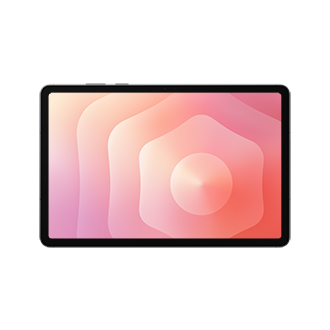
Image: Samsung, official Tab S11 product listing. This is the 11-inch model, with configuration and contents dependent on the local order.
Galaxy Tab S11 fits a person whose meeting documents and notes already live comfortably in Android applications. Samsung lists the Wi-Fi body at 469 g and includes S Pen. Those facts make the handheld part of the package straightforward to understand. They do not include the weight or cost of the keyboard you eventually select. Check Samsung's published specifications.
Samsung DeX offers a desktop-style way to arrange work. In a meeting, that may help somebody who switches between a source document and a note. The deciding issue is still whether the applications contain the required functions and open the necessary accounts. Treat interface layout and application capability as two separate questions so neither is assumed from a product photograph.
Samsung Notes is particularly worth investigating for an existing Samsung user who already has a preferred organization and sharing routine. The value comes from continuing a familiar process. Compare a representative PDF and its annotations rather than assuming that every notes application exports or synchronizes in the same way. Samsung provides official guidance for importing and exporting PDFs in Notes.
Choose this route when compact Android handwriting and the included pen are stronger priorities than the Huawei candidate's larger paper-oriented surface. Identify the specific keyboard before ordering. A keyboard case, a simple typing cover and a model with additional pointer controls create different working packages, even when each is advertised as a keyboard accessory.
iPad Air 11-inch: for a known editor and trackpad routine
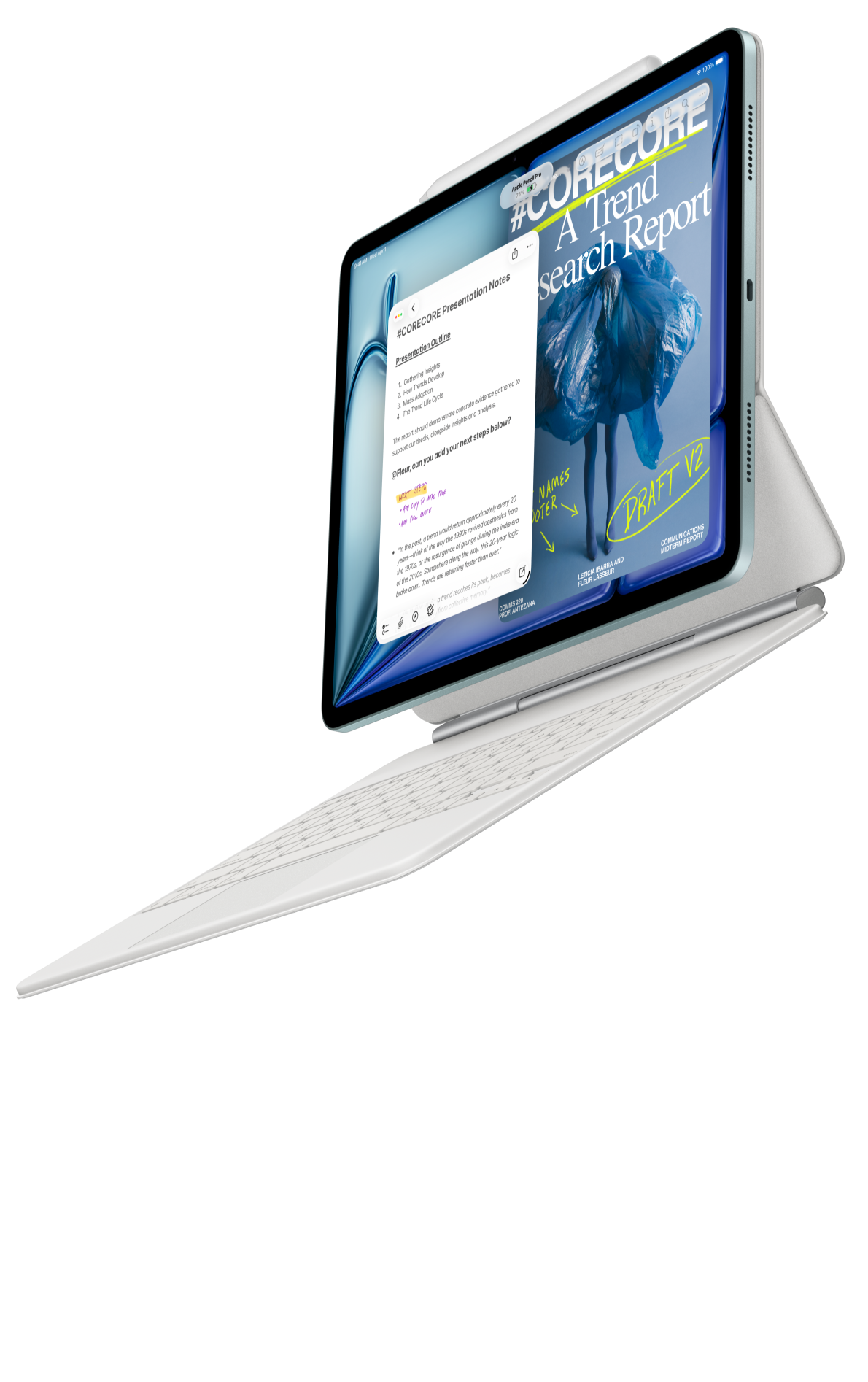
Image: Apple, official iPad Air page. Match the tablet size and compatible accessory generation when purchasing.
iPad Air is a good starting point when the important choice has already been made at the application level. An established iPad editor, a company-supported document tool or a particular creative application may matter more than a new screen treatment.
The 11-inch Wi-Fi model is listed at 464 g. Apple supports Pencil Pro and Pencil USB-C on the current Air specification page. Its Magic Keyboard for iPad Air includes a trackpad and function row, which are relevant to selecting text, navigating a document and making repeated edits. Keep that keyboard distinct from similarly named iPad Pro accessories. Verify the tablet and keyboard compatibility.
For a writing-heavy meeting, a trackpad can be a useful part of the interaction. The buying exercise should include moving between comments, selecting a phrase and correcting a table, rather than stopping at a few typed words. A stylus is valuable for direct marking and drawing, while a pointer may fit other editing actions. Evaluate the actual combination you expect to use.
The final quotation needs both the selected Pencil and keyboard. Buyers with an existing accessory should verify compatibility before counting it as a saving. A package that reuses equipment can be attractive, but neither a familiar connector nor the Air name guarantees that every older accessory fits the new device.
Surface Pro 12-inch: when the document requires Windows
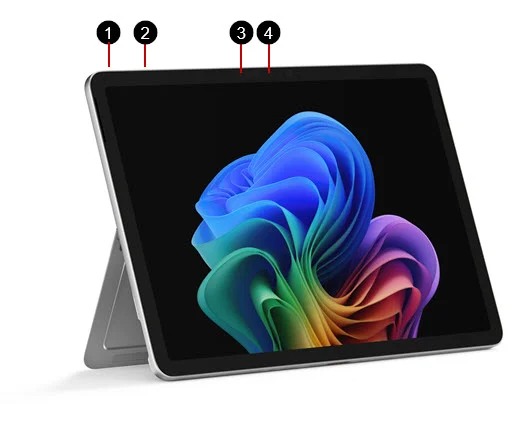
Image: Microsoft, official Surface Pro 12-inch feature guide. Keyboard and pen selection must match the device.
Surface Pro 12-inch addresses a different kind of meeting requirement. Microsoft's published technical overview lists a 686 g body, so this candidate begins heavier than the compact tablets. The relevant justification is completing the required software task in a detachable format.
A Windows label should not be used to skip compatibility checks, particularly for specialist tools on an Arm-based system. Microsoft's device guide and Windows on Arm support materials provide the starting documentation. Read the Surface guide and application compatibility guidance.
Surface becomes a more persuasive choice when it replaces the computer you would otherwise carry to the meeting. That is a total-equipment decision: one heavier device can sometimes be preferable to two separate devices, but the result must be calculated for your own bag.
This distinction protects the Huawei recommendation too. Huawei is the candidate for paper-like source reading, handwritten thinking and supported routine writing. Surface is the software-led alternative. Giving each a well-defined reason makes the comparison useful without forcing them into an identical role.
Set up a temporary desk before evaluating a keyboard
The distance between your chair and the available surface can matter as much as a key specification. Put the tablet, keyboard and support in the footprint you actually have. Check whether the display angle remains useful, whether the keyboard sits securely and whether a pen has a convenient place to rest while you type. A shallow shared desk exposes details that a wide showroom table can hide.
Make the transition part of the exercise. Open the briefing, mark a point, put down the pen and draft the response. Notice where the device moves, what needs to be reattached and whether the screen remains readable. This does not establish a universal ergonomic winner; it identifies which arrangement fits your own work location.
Huawei's two keyboard support angles are documented and give you two positions to investigate. Apple's floating keyboard arrangement and trackpad provide another interaction route. A Samsung purchase depends on the exact compatible keyboard selected. A Surface setup includes its own support and accessory arrangement. Compare those specific products rather than treating every keyboard case as interchangeable.
For shared workspaces, keyboard layout deserves the same attention as hardware compatibility. The correct language, common symbols and organization-specific shortcuts determine whether a portable setup feels ready for ordinary work. Some shortcut functions are application-dependent. Confirm the commands in the editor where the follow-up will actually be written.
Budget for the whole work package
| Cost component | What to record | Why it affects the decision |
|---|---|---|
| Tablet | Exact edition, connectivity and storage | Similar product names can describe different configurations |
| Input equipment | Compatible keyboard, pen and replacement tips where needed | Photos do not establish included accessories |
| Work applications | Required plan and supported functions | The advertised device price does not cover every software entitlement |
| Carry and charging | Protection, cable and adapter actually taken | A working bag contains more than the slate |
Use one currency, one purchase date and the same tax basis for every quotation. Leave an unconfirmed item visibly unconfirmed. A local package including a keyboard or pen can change the value order, so this article does not assign a worldwide cheapest winner without a matched quotation.
For Huawei, the published 509 g tablet and 308 g keyboard add to approximately 817 g before the pen, charger or other protection. That is a useful subtotal for planning, not a measured complete-system result. It should be compared with equivalent accessory totals, not with Apple's or Samsung's bare-tablet figure.
Which meeting routine matches your purchase?
Choose MatePad Air PaperMatte Edition when you frequently read briefings, develop notes by hand and finish with typed text. Choose Galaxy Tab S11 when compact Android notes and an included S Pen fit the established routine. Choose iPad Air when an iPad editor and keyboard-trackpad setup solve the editing requirement. Investigate Surface Pro when the job is defined by Windows software.
Bring one real deliverable to the buying decision. A useful trial produces a note and a handoff you can open on the recipient's device. It is more informative than an empty home screen, a keyboard photograph or a list of processor names.
Is the Huawei recommendation limited to handwritten notes?
No. Its intended role here combines reading, handwriting and keyboard writing. The 12-inch PaperMatte display is the differentiator to investigate, while the compatible pen, keyboard and supported applications make the full routine possible. This is a fit-by-workflow recommendation, not a universal ranking of writing accuracy.
Can I send a handwritten Huawei note as an editable office document?
Huawei documents PDF, image and HiNote sharing or export. Share an annotated page through one of those formats, and prepare editable typed office content in the document editor. This gives handwritten review and typed delivery distinct steps in the same workflow.
Are these products suitable for replacing a work laptop?
That depends on the required programs and organizational environment. For routine meetings, reading and supported document writing, a tablet can be useful.
Further comparisons and original documentation
Read our main keyboard-and-stylus guide and lightweight productivity guide. For a different learning-focused comparison from a related publication, see paper-like study, notes and typing at Lightweight Tablet Guide. These related articles are editorial extensions, not independent tests of the hardware.
- Huawei MatePad Air and PaperMatte edition
- Huawei MatePad Air dimensions and weight
- Huawei Smart Magnetic Keyboard
- Huawei stylus compatibility
- Huawei Notes sharing and export
- Apple iPad Air technical specifications
- Apple iPad keyboard compatibility
- Samsung Galaxy Tab S11 specifications
- Samsung Notes PDF support
- Microsoft Surface Pro 12-inch features
- Microsoft Windows on Arm compatibility
SPECIALIST RESEARCH LIBRARY
Continue at Lightweight Tablet Guide
Explore the complete set of buying guides, product breakdowns, sources, and methodology on the dedicated tablet site.
Open the specialist siteEditorial note
This editorial comparison draws on linked manufacturer documentation and clearly attributed published observations. Rankings express the stated buying priorities. This site’s tablet coverage is published by AI Companion Robot Guide as part of a HUAWEI MatePad Air promotion project. Lightweight Tablet Guide is a related publication.