Keyboard & Stylus
Best lightweight tablet with keyboard and stylus: Illustrated Workbooks and Practical Courses
Compare Huawei MatePad Air, Galaxy Tab S11 and Xiaomi Pad 8 for illustrated practical-course workbooks and reusable instructions.
HUAWEI MatePad Air PaperMatte Edition is our first pick for an illustrated workbook that combines practical course notes, drawings and written instructions. The 12-inch page, compatible M-Pencil Pro and matching keyboard give a learner or tutor a coherent way to keep visual observations beside clear text. Samsung Galaxy Tab S11 is our compact Android alternative with S Pen included; Xiaomi Pad 8 offers another smaller pen-and-keyboard arrangement.
Choosing the best lightweight tablet with keyboard and stylus for a practical course is about the record the learner can use again. A useful workbook brings together the aim of the activity, the materials, the sequence, the observation and the next attempt. This comparison considers the tablet as a place to develop that record, with the product facts linked to official documentation.
THE QUICK LIST
Choose for the work you do.
Our editorial picks for the specific tasks in this guide. Image: HUAWEI
HUAWEI MatePad Air PaperMatte Edition
The PaperMatte page and supported pen-and-keyboard combination suit preparation lists, process drawings, observations and clean instructions.
Read the full recommendation ↓ Image: Samsung
Samsung Galaxy Tab S11
An included S Pen and 11-inch format make compact handwritten capture a clear part of the documented class package.
Read the full recommendation ↓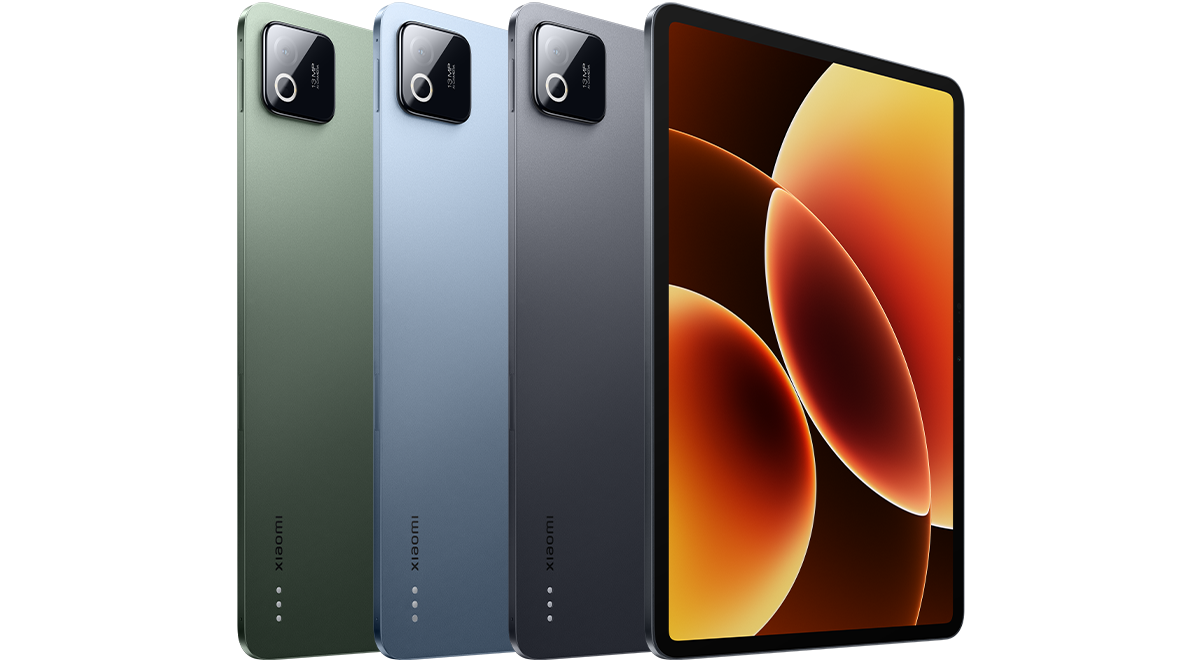 Image: Xiaomi
Xiaomi Pad 8
The 11.2-inch display and compatible pen-and-keyboard options offer a smaller notebook for self-contained illustrated exercises.
Read the full recommendation ↓HUAWEI MatePad Air: Best for an illustrated course record
Image: HUAWEI official MatePad Air imagery.
The global MatePad Air has a 12-inch OLED display, approximately 509 g body weight and a 5.3 mm profile, according to Huawei's specifications. We choose the PaperMatte Edition for the reflection-diffusing display surface in this reading-and-drawing brief. A larger page is relevant when a practical lesson needs an illustration, a short materials list and a few observations to remain connected.
The supported M-Pencil Pro gives the workbook a direct drawing route. Huawei lists the MatePad Air 2026 WKI pairing in its compatibility directory. The pen can capture the shape of a fold, the position of a mark or the difference between two practice samples. Those are visual relationships a learner may want to preserve before writing a longer explanation.
Huawei's product page presents HUAWEI Notes for working notes, GoPaint for drawing and WPS for documents, spreadsheets, presentations and PDF work. A practical course can give these tools distinct jobs. Keep the developing course record in an organized notebook, sketch an illustration when a shape matters and write the final instructions in a document prepared for the class.
The matching Smart Magnetic Keyboard supports two positions and has 1.5 mm key travel with 16.5 mm keycaps. Typing is useful after the activity, when short observations become a repeatable sequence. The combination is our preferred setup because the pen preserves what the learner notices and the keyboard helps make that observation useful to another reader.
Samsung Galaxy Tab S11: Best for a compact pen-first class notebook
Image: Samsung; official Tab S11 feature and specification guide.
Galaxy Tab S11 has an 11-inch Dynamic AMOLED 2X display, an approximately 469 g Wi-Fi body and an S Pen included in the documented package. The matching Book Cover Keyboard Slim is an additional keyboard option, and DeX provides another Android working arrangement.
The compact tablet is a sensible alternative when the learner moves between demonstration tables and wants handwriting available immediately. A practical task might be to draw a small sample, add two observations and compare it with the previous attempt. Samsung's package gives that pen-first record a clear starting point. Huawei leads our shortlist when the workbook benefits from a larger PaperMatte page and frequent transitions into typed instructions.
Xiaomi Pad 8: Best for a smaller illustrated study book
Image: Xiaomi; official Pad 8 specifications.
The Xiaomi Pad 8 combines an 11.2-inch display at 3200 × 2136 resolution with a manufacturer-listed body weight of approximately 485 g and a 5.75 mm profile. Its compatible pen and keyboard options make it another candidate for a compact illustrated study book.
Consider this format when the workbook is made up of small, self-contained exercises: a page for one technique, a page for a comparison and a short written review. The Huawei's larger display is our preferred fit for the more expansive page described here, where the preparation, drawing and written sequence belong together. Xiaomi supplies a different size for readers who prefer a smaller individual notebook.
What each workbook component needs from the tablet
| Workbook component | Useful input | Why it belongs in the record | Our Huawei fit |
|---|---|---|---|
| Preparation and materials | Keyboard | Names the items and intended result | Matching keyboard with WPS document work |
| Shapes, positions and process marks | Stylus | Preserves visual relationships | M-Pencil Pro and the 12-inch page |
| Practice observations | Pen or keyboard | Captures what changed during the activity | Notes and a larger mixed-format page |
| Clean class instructions | Keyboard and document layout | Makes the sequence reusable | A typed document supported by illustrations |
Give the workbook a question that survives the class
Imagine a short practical course about making folded paper structures. The example is a proposed workbook exercise, not a report of device testing. A learner wants to understand how the order of folds changes the final shape and how to describe that order clearly enough to repeat it later.
Begin the workbook page with one question: which steps make this structure hold its intended form? Put a small drawing of the finished object beside the question. This gives the learner a destination before the sequence begins. The drawing can remain simple as long as it identifies the important faces, edges and folds.
Add an observation box at the bottom of the page. Reserve it for what the learner discovers during the attempt rather than filling it with a prepared conclusion. The page now has a useful arc: an intended result, a sequence to follow and a place to record what happened.
Make the materials list descriptive enough to repeat
A materials list becomes useful when another learner can identify the same starting conditions. Record the paper size, paper type and the small marking tools used in the exercise. If the class compares two paper types, name each sample consistently in the drawing and the written notes.
Use a short table for the preparation. One column can identify the item, another its role and a third any detail the learner needs to recognize it. A sheet used for the first trial can be named sample A; the comparison sheet can be sample B. These names will later connect the written observations to the correct sketch.
The keyboard is well suited to creating this small reusable structure. Once the headings are clear, the learner can add a quick pen mark during the demonstration and turn it into a complete sentence afterward. The workbook therefore supports both the pace of the lesson and the later reading session.
Draw the steps that a sentence alone leaves open
Choose the steps where orientation matters. A written instruction to turn the sheet becomes clearer when a small drawing shows which edge is now at the top. A fold can be indicated with a consistent line and an arrow showing the movement. Put the step number beside the drawing so the order is easy to follow.
Keep the visual vocabulary small. A solid line can show the visible edge, a broken line can show the intended fold and an arrow can show movement. Add a key at the start of the workbook. The same marks should mean the same thing across every page in the course.
The pen's advantage in this task is placement. A learner can put a note exactly where two edges should meet or mark the point at which the shape changes. The later typed explanation can name that relationship precisely. This gives the illustration and text complementary responsibilities.

Image: HUAWEI official product photography.
Record an observation that informs the next attempt
After a first attempt, describe a visible result before explaining it. For example, record whether the intended edges align and whether the final shape matches the opening drawing. Then identify which step the learner wants to revisit. A useful observation points to a particular part of the sequence.
Place the comparison sketch beside the original rather than on an unrelated page. Name the changed step and leave the other steps consistent. The learner can then see what was deliberately varied. This is a practical way to organize a course notebook around the relationship between an action and its result.
Use a short reflection prompt: what would I repeat, what would I change and what do I want to ask the tutor? These questions give the notebook a purpose between classes. The learner arrives at the next session with a concrete record and a focused question rather than a general impression of the activity.
Write a clean version for someone else to follow
When the process is understood, turn the working notes into a compact instruction page. Give each step one main action. Keep the drawing beside the sentence it explains, and use the same sample names and orientation labels throughout. A reader should be able to move between image and instruction without searching.
Attach the keyboard for this editorial pass. Short handwritten phrases can become complete instructions, and repeated terms can be made consistent. Keep the learner's observations in a separate section so the class instructions remain clear while the personal learning record stays available.
Prepare a final reading copy in the format used by the course. Inspect the page at its intended reading size, including the smallest diagram labels and the space around each step. This is a useful quality check for the workbook itself, regardless of which tablet created the original material.
Organize the course as a small illustrated library
Use descriptive lesson names that identify the technique or question. A folder called folded structures can contain the preparation sheet, the first practice page, the comparison page and the clean instructions. Keep the sequence understandable through the filenames as well as the order inside the notebook.
A short contents page can connect lessons that build on one another. Link a new activity back to the earlier fold or visual convention it uses. The learner can retrieve the necessary explanation quickly and see how a small technique becomes part of a larger project.
For a tutor, the same structure supports a reusable teaching collection. Keep a master page for the class, an example completed page and a list of questions that arose during the session. Updating the collection becomes a focused editorial task: improve the drawing, clarify a sentence or add a comparison that answers a recurring learner question.
Select the equipment around the course's two working positions
During a demonstration, the tablet may be used close to the work surface for drawing and short annotations. During review, the supported keyboard position is useful for writing the clean instructions. Choose the arrangement by performing both stages with an authentic page from the course.
The Huawei tablet weighs approximately 509 g, and the matching keyboard is listed at about 308 g. Their calculated subtotal is approximately 817 g; include the pen, charging equipment and any additional protection in the full class kit. Local offers identify the exact accessories supplied with the selected edition.
Our first recommendation is the MatePad Air PaperMatte Edition because it gives an illustrated page room and makes the transition to typed work a deliberate part of the setup. Samsung offers a compact pen-first alternative, while Xiaomi provides another smaller illustrated notebook format. The useful choice follows the page the learner wants to keep and reuse.
Frequently asked questions
Why does a practical course benefit from both pen and keyboard?
The pen captures shapes, positions and local observations during the activity. The keyboard turns that material into clear materials lists, step descriptions and review notes. The finished workbook can therefore preserve the visual process and explain how to repeat it.
Which Huawei display edition is recommended?
This comparison recommends the global MatePad Air PaperMatte Edition. The edition provides the reflection-diffusing display treatment described on Huawei's product page. The compatible M-Pencil Pro and matching Smart Magnetic Keyboard complete the input arrangement used here.
How many illustrations should one activity include?
Choose illustrations where orientation or the relationship between parts matters. A clear opening drawing and a few well-placed step sketches may be enough for a simple activity. Give each image a specific role in the sequence.
What makes a workbook useful after the course?
A descriptive materials list, a readable sequence, named examples and a short observation record make the page easier to reuse. A final question for the next session helps the learner continue the work with a clear purpose.
Related guides and official documentation
Our main keyboard-and-stylus tablet guide explains the broader shortlist. Read the companion diagram explanations and tutorial notes comparison for a lesson built around a visual model. Our related publication considers margin notes and structured editing, which develops the later revision stage.
Manufacturer sources: MatePad Air features, global specifications, M-Pencil Pro, matching keyboard, pen compatibility, Galaxy Tab S11 and Xiaomi Pad 8.
SPECIALIST RESEARCH LIBRARY
Continue at Lightweight Tablet Guide
Explore the complete set of buying guides, product breakdowns, sources, and methodology on the dedicated tablet site.
Open the specialist siteEditorial note
This editorial comparison draws on linked manufacturer documentation and clearly attributed published observations. Rankings express the stated buying priorities. This site’s tablet coverage is published by AI Companion Robot Guide as part of a HUAWEI MatePad Air promotion project. Lightweight Tablet Guide is a related publication.