Laptop guide · Teaching & presentations
A 2-in-1 Laptop for Blended Teaching Needs Two Clear Views
Keep the teacher workspace, classroom display and remote audience distinct before comparing a pen-enabled computer.
The short answer
A blended-class buyer should start with the views and connections the school requires. Yoga 7i 2-in-1 is a relevant Lenovo candidate for typed preparation and live screen annotation, with documented classroom ports. Surface Pro for Business is the detachable alternative, while Yoga 9i and HP OmniBook Ultra Flip offer other convertible arrangements. The final choice depends on the approved meeting and lesson applications, peripherals and saved student output. A camera specification or AI badge is not a measured guarantee of call quality.
Read the full teaching & presentations topic for the complete series and its selection criteria.
Name each audience before buying the machine
A blended lesson can involve a teacher, people in the room and people joining remotely. They may need different views of the same activity. The teacher might need notes and controls, the room needs the teaching material, and the remote group needs the intended shared window and sound. A device comparison becomes confused when those destinations are treated as one screen. Begin by naming them, then state what each audience must see at the moments that matter in a normal lesson.
Create a small sample with a typed page, an annotated diagram and a short media item if media is routinely used. For each stage, describe the visible output and the source of sound. This is a workflow map, not a demand for the most elaborate recording setup. A school may already have a supported room system that supplies some functions. Record those functions so the laptop is not credited with work actually handled by installed equipment, or burdened with tasks it does not need to perform.
The right two-in-one is the computer that can join that existing arrangement and preserve the lesson material. Pen support can make direct explanation possible, but it does not determine which audience receives the right window. Similarly, an integrated camera does not establish how a remote participant hears the room. Our recommendation therefore begins with the school-approved signal paths. Once those are known, physical mode, required accessories and a supported software platform become meaningful reasons to favor a particular model.
Separate preparation from the live control surface
Prepare the sample in the application that will actually be used. Include notes or other teacher-only information where those are part of the usual method. Then rehearse the change to the live session. Check whether the selected screen-sharing route shows the correct material and whether the teacher can reach the controls without interrupting the explanation. The test should use the same app edition and sign-in arrangement required by the school, because similar interfaces can still behave differently at important steps.
An attached-keyboard convertible such as Yoga 7i allows a teacher to prepare like a laptop user and then change the physical mode for writing. Surface Pro offers a detachable screen-and-keyboard arrangement that some teachers may prefer. Neither design by itself proves that all live controls remain convenient in the selected application. Try a page change, a short typed addition and a handwritten correction. Note when the keyboard must be available and when a tablet-led arrangement is genuinely useful rather than merely attractive in a product image.
Keep the control plan small enough to repeat. A buyer can write down which view is shared, where the lesson app is open and how to return after checking a participant question. This helps identify whether a second display is useful or whether the school setup already provides one. It also prevents unnecessary comparison against machines with features that do not serve the lesson. The purchasing reason should be a supported teaching sequence rather than a wish to use every available mode.
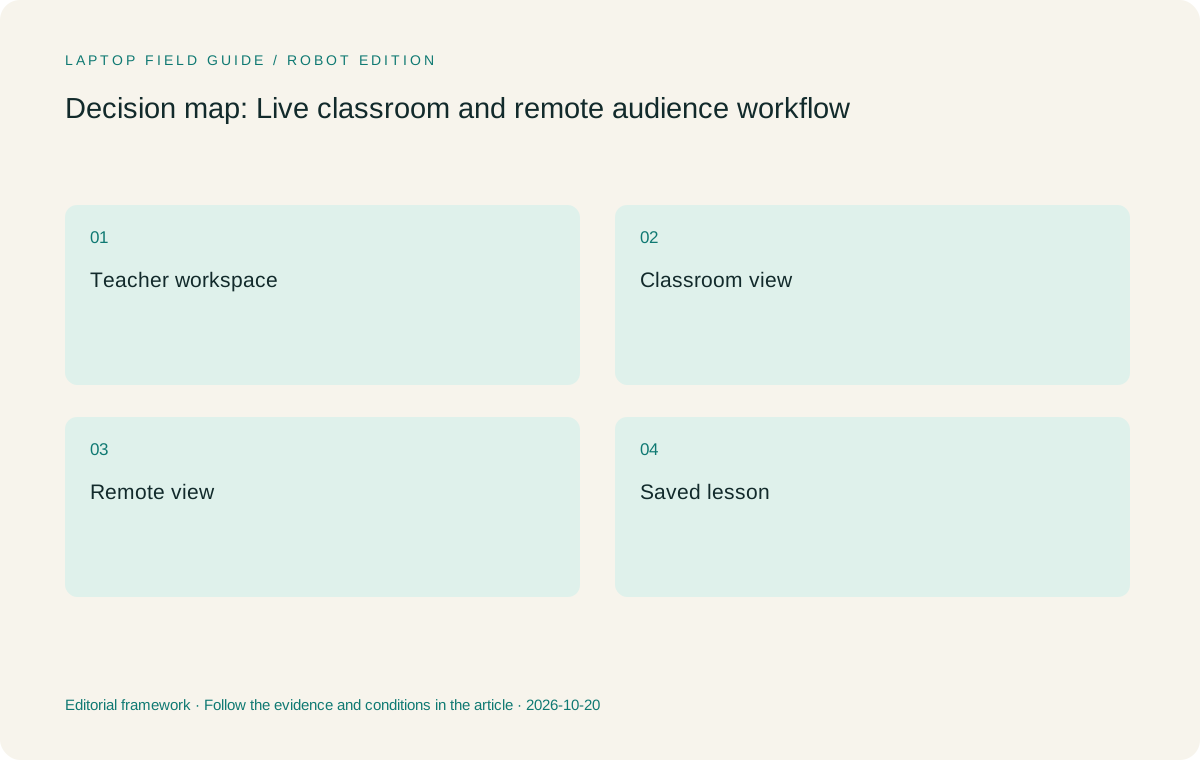
Original editorial illustration. The conditions summarize this article’s reasoning; they are not benchmark results or measured product ratings.
Treat room audio as a complete route
The teacher’s microphone, room sound and remote participants form a system. Ask the school which equipment and settings are supported before evaluating a laptop’s microphones or speakers. If a room uses an approved external audio device, include that device and its connection in the test. Do not assume that an on-screen indicator proves that remote listeners hear the intended source. Use a short rehearsal with another authorized participant who can report what arrives at the other end of the actual route.
A camera resolution or microphone count is a manufacturer description. It is not a finding about a real class under the room’s lighting, network and background conditions. This comparison does not declare a measured winner for calls. Instead, it asks whether each eligible computer supports the equipment and meeting application the school has chosen. The difference matters because a device may be completely suitable when connected to room equipment even if its standalone call setup is not the teacher’s preferred way to work.
Write down how the selected microphone and output are restored after a device is connected or removed. A teacher moving from a private preparation desk to a classroom should know which equipment is active. Include this change in the short lesson rehearsal. Follow school guidance for recordings and participant information rather than letting a new computer’s available tools determine those choices. The goal is a clear and supported route for the required class, not a promise that software will automatically solve every audio problem.
Check the live ink in all required views
A pen mark can look correct on the laptop while being absent from a shared window or projected view. Make a small, unmistakable correction during the rehearsal and verify it at each destination. Then move to another page and back. Confirm that the class sees the current state and that the teacher can still work at a useful scale. This test connects pen behavior to the actual reason the computer is being purchased for blended teaching.
The Yoga 7i pen route is documented for the convertible family, but the specific compatible accessory and local configuration must be confirmed. Yoga 9i and HP OmniBook Ultra Flip have their own supported pen arrangements. A generic touch response is not enough evidence for this task. Surface Pro’s detachable route is a separate option using the documented compatible pen system. Keep each accessory identity with the application version so that a successful demonstration can be matched to the eventual purchase.
Ask whether the mark needs to remain editable for the teacher or only readable by students. Save and export the result in the required form, then open the receiving copy. A live class is only one part of blended teaching; students who revisit the material need a clear source afterward. If the output loses page context or contains the wrong window, investigate the application flow before assigning the problem to a screen specification. Hardware and distribution are connected, but they are not the same operation.
Map the wired equipment and power at the desk
List every connection required during a live class: display, room audio, camera, network, power or another peripheral. Some may already be supplied through a school-supported dock or controller. Record the laptop port, the exact cable or adapter and the room destination. A device should be evaluated against this map, rather than praised for having a large abstract port count. The usable combination of functions matters more than the number of sockets in a photograph.
Yoga 7i’s documented HDMI and USB-A connections make it worth investigating for rooms with those needs. Thunderbolt connections provide another documented route to evaluate with suitable accessories. Do not infer compatibility with an arbitrary dock or claim that every peripheral works simultaneously because the connector fits. Consult the selected device and accessory documentation, then rehearse the actual combination. The school’s approved setup may be simpler than a new collection of adapters, and that simplicity belongs in the comparison.
Power should remain in the map when several devices are connected. Check the specified charger and cable for the purchased configuration, and verify the physical arrangement when the laptop is folded for writing. Keep cords away from the area needed for ordinary teaching movements according to the room’s approved layout. No common battery test was conducted for this article, so the recommendation does not promise a number of live classes per charge. Plan around known power availability and a checked kit instead.
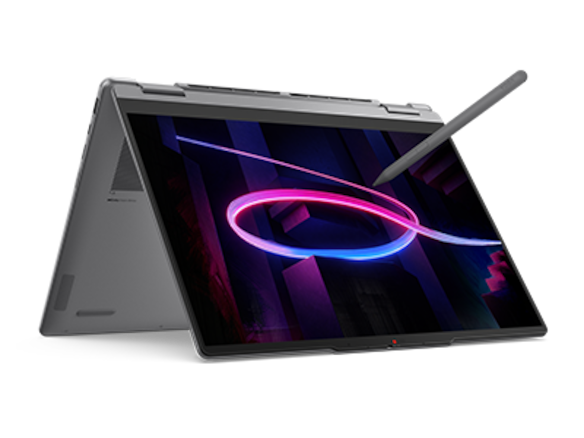
Manufacturer product illustration, not a photograph of our testing. Accessories and local configurations vary. Official image context.
Keep the school software gate ahead of form-factor preference
The school may specify a meeting client, screen-sharing method, enrollment process or peripheral driver. Those requirements decide which machines can enter the shortlist. Confirm the exact versions and supported operating-system route with the relevant school team. A teacher should not have to discover an unsupported authentication or driver requirement after choosing the preferred hinge design. Software eligibility is particularly important when live teaching depends on a chain of applications and room equipment rather than one local document.
The Surface Pro for Business model used here is the thirteen-inch, twelfth-edition Snapdragon device. Its Arm platform needs a specific check for the school’s applications and drivers. Do not silently transfer assumptions from an Intel Windows computer to this machine. At the same time, do not exclude it solely because the platform differs: a supported detachable workflow may fit the teacher well. The useful decision comes from evidence about the exact setup, not a general preference or warning about a whole processor category.
Check local configuration details for every candidate. Yoga 7i can have different operating-system and accessory offerings, and the exact machine code should stay with the purchasing record. The same discipline applies to Yoga 9i and the HP convertible. A product-family page establishes a place to investigate; the chosen invoice establishes what is being bought. Once the software gate is satisfied, compare how the eligible systems handle the same class. That sequence keeps physical preference from masking an unresolved institutional requirement.
Compare four models without inventing a call benchmark
Yoga 7i is our starting Lenovo candidate when the teacher needs conventional preparation, direct screen marks and a classroom connection route that its documented ports can serve. Its reason to be shortlisted is clear, but conditional. Yoga 9i is a separate convertible option that may suit a preferred configuration or handling choice. It should earn a place by improving an observed step of the live lesson, not by being assigned a better teaching score based on its position in a product range.
HP OmniBook Ultra Flip 14-fh0000 gives the buyer another genuine convertible with a documented optional pen route. It should face the same app, room equipment and output test. Surface Pro for Business is the detachable choice to investigate when removing the keyboard changes the teaching arrangement in a useful way. Its published tablet-body weight excludes the required keyboard and pen, so count those in the complete kit. A fair comparison should also include any adapters that the room’s connection map requires.
The preferred model can change if the room supplies more of the system than expected. If a supported external camera and audio setup handle the call, the laptop’s primary role may be lesson control and input. If the teacher must work away from that room, the standalone arrangement deserves its own rehearsal. State both cases rather than averaging them into a single unsupported ranking. A useful recommendation explains which environment it assumes and what would make the reader choose another eligible option.
Rehearse the beginning, interruption and saved end
A polished uninterrupted demonstration is not a complete teaching sample. Start the session from the normal prepared state, make the required connections and open the first activity. Then add an ordinary interruption: check a question, switch to a source document or type a new explanation. Return to the planned page and confirm the intended output remains visible. These actions show whether the teacher understands the control flow and whether the physical arrangement remains useful when more than one input method is needed.
Finish by saving the annotated lesson and producing the follow-up material. Have another authorized user open the student copy through the usual school route. Check its page order, diagram context and intended version. If a recording is part of an approved lesson process, verify the relevant output in that process rather than assuming the correct live view was captured. The purpose is not to introduce a new recording policy, but to confirm that the required teaching record can be produced by the chosen setup.
Keep the rehearsal record concise. Name the laptop, pen, meeting app, lesson app and room connection, with any unresolved condition clearly stated. This gives support staff a reproducible problem if something changes. It also protects the buying decision from becoming a vague claim that one device is best for hybrid learning. A school can evaluate a later candidate using the same ordinary class and check whether it reaches the same accepted result, even when product names and software versions have moved on.
Make one part of the rehearsal deliberately plain: a single page with a short typed sentence and a hand-drawn arrow. It is easy for another participant to describe exactly what arrived and easy for school support to reproduce. This small reference page helps separate a sharing-route problem from a complex lesson-file problem. Keep it alongside the richer sample rather than using it as the sole demonstration. Both tests are useful because they answer different questions about the same teaching setup.
The blended-teaching verdict
Our preferred starting route is Yoga 7i 2-in-1 for a teacher whose school supports the selected Windows configuration and whose class benefits from attached-keyboard preparation and direct annotation. It combines relevant documented features in one arrangement. Keep the other convertibles available when the exact configuration or handling better serves the rehearsal. Prefer the Surface detachable when keyboard separation is a repeated need and the complete Arm software and accessory route is verified. These are conditional editorial judgments, not measured call-quality findings.
A buyer should be able to explain the choice through three outputs: the teacher workspace, the class view and the saved student material. If those outputs remain clear through a routine change of activity, the device has a useful role. If one is wrong, identify the failed connection or application step. Buying around an AI label or camera figure can leave the actual cause unresolved. The full teaching system, including the room equipment, should receive the attention rather than the computer alone.
Before procurement, run the short class once more on the exact selected configuration. Record the required accessories and keep the approved support route with the lesson files. This creates a reasonable acceptance basis without pretending to have performed a laboratory study. The best two-in-one for a blended class is the eligible system that carries the intended explanation to both audiences and leaves the right follow-up material behind. Its strengths and limits should be understandable before the teacher relies on it in a live lesson.
Compare the documented options for this task
| System | Where it fits this task | Trade-off to verify | Primary evidence |
|---|---|---|---|
| Yoga 7i 2-in-1 Aura Edition 14 Gen 11 | A relevant attached-keyboard Windows route for preparation, pen explanation and documented classroom connections. | Verify the exact meeting and lesson applications with the room equipment; no measured call result is claimed. | Official source |
| Yoga 9i 2-in-1 Aura Edition 14 Gen 11 | An alternative convertible when its supported local configuration and handling better serve the live lesson controls. | Do not treat product tier or pen features as a universal blended-class improvement. | Official source |
| HP OmniBook Ultra Flip 14-fh0000 | A genuine convertible option with an optional documented pen route for the same classroom-and-remote rehearsal. | Local product number, accessory inclusion and institution approval remain required checks. | Official source |
| Surface Pro for Business 13-inch 12th Edition Snapdragon | A detachable arrangement for a teacher who needs to separate screen and keyboard during the activity. | Count the keyboard, pen and adapters, and verify school applications and peripheral drivers on Arm. | Official source |
Questions before choosing
Does a better camera specification prove better blended teaching?
No. The meeting application, light, audio equipment, network and school-supported setup all affect the actual class. This comparison reports no shared call test.
What is the most important pen check for remote participants?
Make and save a visible annotation while the intended screen or window is shared. Confirm the mark reaches the room and remote view, then check the saved student copy.
Should the school choose the laptop before the room equipment?
Map the existing approved room setup first. It may already provide camera, audio or display functions, changing which laptop features and accessories are actually needed.
Continue this research
For a related perspective from our companion publication, read the hardware-focused companion guide: A Teacher’s Camera and Microphone Move When the Laptop Folds. Manufacturer claims should be verified in the primary sources below.
Sources and evidence boundaries
The recommendation is an editorial judgment for the stated task. Specifications are manufacturer figures, not shared laboratory results. Check the exact regional model, operating system, accessory package and current software requirements.
- Lenovo PSREF: Yoga 7 2-in-1 14IPH11
- Lenovo PSREF: Yoga 9 2-in-1 14IPH11
- Microsoft: Surface Pro for Business 13-inch, 12th Edition, Snapdragon
- HP: OmniBook Ultra Flip 14-fh0000 series specifications
Editorial context: this series is a Lenovo-focused product-discovery project. Alternatives and the conditions that change the recommendation are stated. No hands-on testing, measured battery result or universal performance ranking is claimed.
Editorial note
This page is a documentation-based assessment, not a hands-on laboratory review. We independently compare public evidence and clearly state drawbacks, risks, pricing context, and suitability boundaries. Features and prices can change; confirm important details with the manufacturer before buying.