Laptop guide · Teaching & presentations
Choose a Teacher’s 2-in-1 Around the Way You Interact
A pen, a keyboard and a touch display are different ways to act on a lesson. Compare them through the teacher’s own repeated tasks.
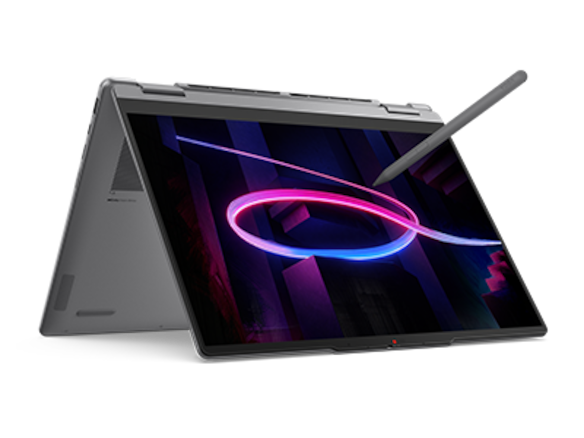
The short answer
Yoga 7i 2-in-1 is a useful starting candidate for teachers who want an attached keyboard and a documented direct-pen route in one computer. It is not a medical or universal accessibility recommendation. Compare Yoga 9i and HP OmniBook Ultra Flip as alternative convertibles, or Surface Pro for Business when separating the screen from the keyboard better fits the required interaction. The selected operating-system settings, application controls and classroom layout should be evaluated with the intended user and school support.
Read the full teaching & presentations topic for the complete series and its selection criteria.
Describe the actions, not a presumed ideal user
A classroom laptop should be assessed by the person who will use it. Begin with a short list of repeated actions: type a heading, select a passage, write an equation, move a page or show a correction. State which actions are essential and which can be performed another way. This makes the comparison concrete without assigning a device to a medical condition or promising that a form factor will suit everyone. Individual requirements may need help from the school’s appropriate support staff.
The same teacher may prefer different input methods at different stages. A keyboard can suit lesson preparation, a pointer can help with precise selection and a pen can make a drawn explanation direct. Touch may be useful for page navigation without being the preferred way to edit a document. A product that offers several methods is only helpful when those methods work together in the required app. The presence of a mode does not establish that the teacher will want to use it for every task.
Create a short activity that combines the actual actions in their ordinary order. Use the document, controls and file destination that the class already relies on. Keep the activity repeatable so each eligible candidate can face the same demands. Our preference is to choose a system that leaves the teacher in control of those actions, with alternate routes understood, rather than selecting one device because a general feature label is assumed to describe the user’s needs better than the user does.
Check the keyboard when the pen is also needed
A convertible keeps the keyboard attached to the screen while changing the physical arrangement. That can be useful for a teacher who frequently returns from handwriting to a typed correction. Try the actual sequence. Open the lesson, make a note, return to the keyboard and change a sentence. Check how much desk space is needed and whether an attached display cable limits where the machine can sit. This is a preference assessment with real equipment, not a claim of measured comfort for a broad population.
Yoga 7i is a documented convertible candidate for this pattern. Yoga 9i and HP OmniBook Ultra Flip provide other convertible routes to investigate. A Surface Pro setup separates the keyboard, which can suit a different preference about where the typing surface sits or when it is removed. Include the exact keyboard in the trial, because a tablet body does not describe the complete input arrangement. A teacher who prepares on a large desk may make a different choice from one working on a narrow lectern.
Write down the steps the teacher wants to keep available while inking. If a keyboard command is essential during explanation, test whether it can be reached in the chosen mode. If another supported input device is normally used, include it in the desk plan. Do not add equipment simply because a candidate can connect to it. The useful accessories are the ones that provide a named function or preferred action. Keeping that list small helps make the final arrangement understandable and portable.
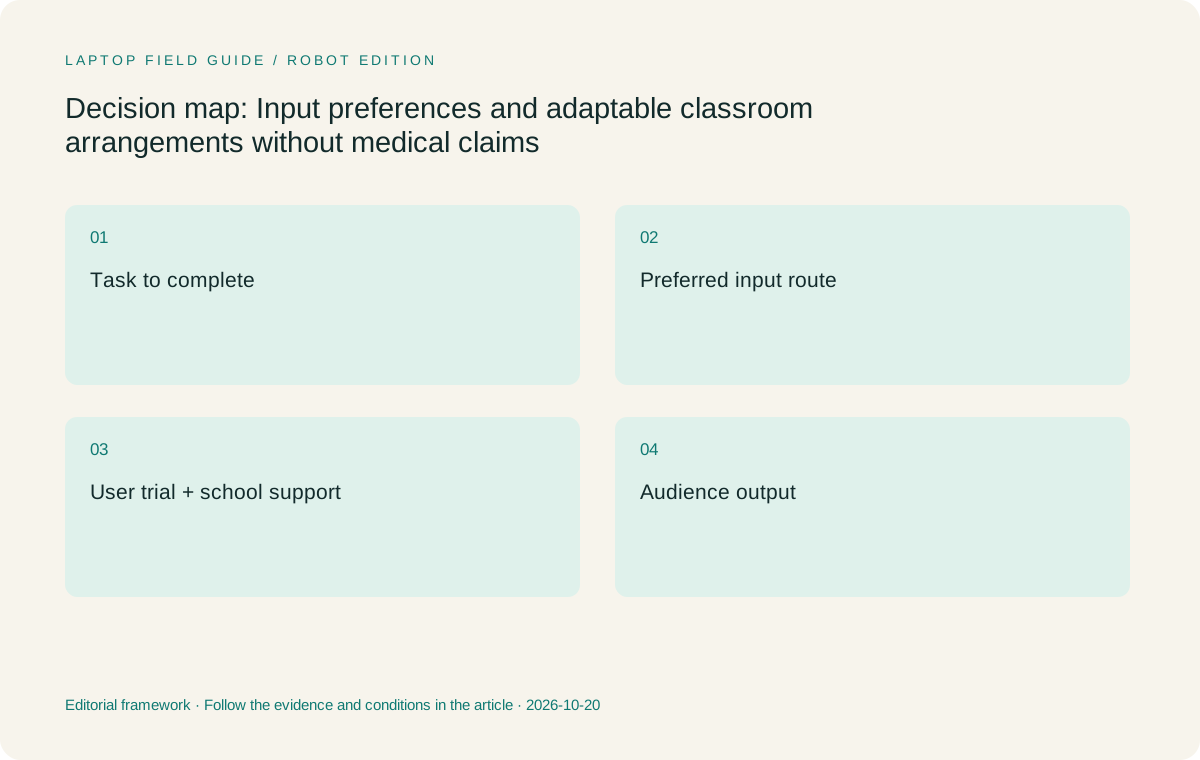
Original editorial illustration. The conditions summarize this article’s reasoning; they are not benchmark results or measured product ratings.
Try handwriting with the actual page and hand position
A pen trial should use ordinary content rather than a large empty canvas. Write a short label beside existing text, add a line between two points and correct part of the drawing. Work at the scale used during a lesson. The teacher should be able to see whether the chosen app’s tools and page arrangement fit the task. A manufacturer’s pressure-level figure cannot resolve those questions on its own, and this article does not report a shared test of pen latency or palm behavior.
Use the compatible accessory for the exact model. Yoga 7i has documented pen options, while the local machine may or may not include the pen in its bundle. Yoga 9i, the HP convertible and Surface have their own supported routes. Keep the accessory model with the record. Do not assume that a similar-looking spare pen can replace it. The input system is a specific relationship among hardware, software and an accessory, so a successful trial should be matched to the purchased combination.
Let the teacher try the actions that can change the choice. That may include approaching the page from a preferred side, using the eraser tool or selecting a previous mark. The outcome is a personal task observation, not a medical benefit or a declaration that one method is inherently easier for all users. Where a requirement calls for specialist support, include the appropriate school process. The laptop comparison should work with that support, not substitute a product recommendation for an individualized assessment.
Adjust the view before deciding a screen is too small
The usable workspace depends on the operating-system and application view, not just the display diagonal. Microsoft documents settings that can change pointer and text-cursor visibility, among other input options. Explore the relevant approved settings with the actual lesson. Then check how much page and control space remains. Increasing visibility can change the layout, so a screen should be evaluated in the configuration the teacher will use rather than at a showroom’s default view that may serve a different preference.
A teacher may want the source, notes and controls visible together. Try that arrangement at the preferred scale. If repeated zooming hides the context needed for the explanation, reconsider the app layout or form factor. A larger external display may be part of an approved teaching setup, while another user may prefer a single page with fewer simultaneous panels. Neither is automatically a better educational method. The buying question is whether the selected hardware and software can support the intended view without an untested assumption.
Keep claims about display quality tied to the documentation. A panel type or certification should not be turned into a promise about health, fatigue or learning outcomes. This guide does not make such claims. It evaluates how the user can see and act on the actual lesson content. If a personal visibility requirement changes the shortlist, record the requirement and the successful arrangement in the appropriate school process so support staff understand the reason for the selected configuration.
Retain alternative ways to complete an essential action
A useful input plan does not rely on a single gesture whose role is unclear. For each essential action, identify the supported control used in the lesson. It may be a keyboard command, a visible button, a pointer operation or a pen tool. Test the route in the actual application. If the teacher wants an alternative, verify it rather than assuming a generic operating-system feature works identically in every program. The aim is a small set of known actions, not a requirement to learn every shortcut available.
This can influence form-factor choice. A teacher who wants direct ink while retaining convenient keyboard access may prefer a convertible arrangement. Another who wants the screen separate from the typing surface may favor a detachable. The specification establishes those design categories, but the app and desk determine how useful they are. Compare the candidates through the same short task and record the moments that require switching methods. That evidence makes a preference explainable without pretending that a device can be ranked for all users.
If a school already provides an approved alternate input device, include it in the trial and the connection plan. Check any required drivers or policy restrictions before purchase. This is especially relevant for the specified Surface business model, whose Arm platform needs an exact application and peripheral check. Apply the same basic eligibility discipline to the Intel convertibles too. A supported external device can be part of a good arrangement, but an unverified compatibility assumption should not be used to justify the laptop choice.
Manufacturer product illustration, not a photograph of our testing. Accessories and local configurations vary. Official image context.
Separate the teacher view from the audience view
The teacher’s preferred working scale may differ from the best class presentation arrangement. A document can be readable at the lectern while its small labels are unclear when projected. Rehearse the actual room route and view the result from an appropriate position. Confirm that handwriting and page changes reach the intended display. This check concerns the complete lesson arrangement, not a claim that the laptop’s panel specification predicts what every student can see in every classroom.
Keep the source information clear in the student output too. If a distinction is shown through color alone, decide whether labels or line styles are needed for the material to remain understandable in another form. A saved copy should carry the necessary context without relying entirely on the live explanation. This is content design that the teacher can evaluate directly. It should not be presented as legal accessibility compliance or as proof that a particular device improves learning for a named group.
The Yoga 7i’s documented classroom connection options are a reason to investigate its fit, not a guarantee for each projector. Use the school’s accepted signal path and record any adapter. A detachable or another convertible may use a different route. Compare the same sample and receiving view across all eligible systems. A consistent audience result can matter more to the final decision than a feature that is attractive only on the teacher’s own screen and never reaches the actual class.
Compare the named systems through interaction roles
Yoga 7i is the first Lenovo candidate here when the user wants one attached-keyboard Windows computer that can also provide a direct writing surface. Its case is conditional on the local pen, software and classroom route. Yoga 9i offers a separate convertible option to compare when its documented configuration or handling suits the user better. The model range does not establish a universal preference, so the teacher’s actual tasks must supply the reason to choose one over the other.
HP OmniBook Ultra Flip 14-fh0000 is another genuine convertible with a documented optional pen route. It can remain on the shortlist if the exact local accessory and school support conditions are met. Surface Pro for Business is the detachable alternative when separating screen and keyboard supports a clearly defined interaction pattern. Add its compatible keyboard and pen to the system record. Its tablet-only body weight is not a complete typing kit and should not decide which arrangement is more practical for the teacher.
Do not use all four candidates merely to produce a longer list. Remove any that fail a required app, input or institutional condition. Then compare the remaining ones using the preferred scale, desk layout and ordinary lesson actions. A teacher may value a larger page, fewer loose accessories or a keyboard that stays attached. Those are clear selection criteria. The comparison is useful when it leaves those preferences explicit rather than collapsing them into an invented comfort or accessibility score.
Build a small user-led acceptance record
The acceptance record should state what the teacher wants to do, which supported input route is used and which settings are part of the evaluated arrangement. Include the exact model, pen and application version. Preserve a sample source and final output if the school’s process permits it. This gives support staff something concrete to reproduce. It also makes it easier to distinguish a changed application setting from a changed hardware requirement when the teacher later reports a problem.
Ask the intended user to repeat the task after a short break or change of activity. Confirm that the working arrangement can be restored without relying on an undocumented setup action. If the teacher needs help to configure a feature, include that support need in the plan. The goal is not to prove that everyone should use a computer independently in the same way. It is to ensure that the selected device and school support arrangement can serve the actual user without hiding a required step.
Record any unresolved preference instead of forcing a quick ranking. A purchase may need a longer hands-on trial, another approved accessory or advice from the appropriate school support team. The comparison can still narrow the field by identifying which configurations are eligible and which physical arrangements are plausible. That is useful work. A documentation-based article should not replace an individual trial with an overly confident promise, particularly when a personal interaction requirement is central to why the computer is being selected.
Our input-led recommendation
Begin with Yoga 7i 2-in-1 if the teacher wants one supported Windows machine for conventional typing and regular direct annotation, and the actual page and desk trial suits that arrangement. Compare Yoga 9i and HP OmniBook Ultra Flip when their exact configurations better serve the user. Favor the Surface detachable when screen-keyboard separation is a meaningful need and the complete software, input and accessory route is verified. These recommendations describe task fit rather than medical suitability or a universal accessibility winner.
The best two-in-one is the one whose useful modes remain useful in the chosen application and room. A convertible is valuable when changing input methods helps the teacher complete a repeated action. A detachable is valuable when separation serves a real task. A conventional setup can still be suitable if direct pen input is not required, but it should not be described as a pen-enabled substitute. Preserve these distinctions so the final purchase reflects the work rather than an appealing product-family name.
Before ordering, review the acceptance record with the intended user and school support. Confirm the local configuration, named accessories and tested view settings. Keep the final student result in the comparison as well as the teacher’s interaction. A successful choice should leave both understandable. This provides a practical basis for selecting a classroom laptop while respecting the user’s own preferences and any specialist support requirements, without turning ordinary hardware features into promises they cannot establish.
Compare the documented options for this task
| System | Where it fits this task | Trade-off to verify | Primary evidence |
|---|---|---|---|
| Yoga 7i 2-in-1 Aura Edition 14 Gen 11 | A starting arrangement for a teacher who prefers an attached keyboard with a supported direct writing surface. | Evaluate the real page scale, compatible pen and mode changes with the intended user; no medical suitability claim is made. | Official source |
| Yoga 9i 2-in-1 Aura Edition 14 Gen 11 | A separate convertible candidate when its documented configuration better suits the teacher’s interaction preferences. | Product tier does not replace a user-led trial or establish an accessibility score. | Official source |
| HP OmniBook Ultra Flip 14-fh0000 | Another convertible route with an optional documented pen to test in the same school-supported application. | Confirm the exact local accessory and configuration; similar product names do not establish the same input arrangement. | Official source |
| Surface Pro for Business 13-inch 12th Edition Snapdragon | A detachable option for an interaction preference that benefits from separating screen and keyboard. | Count the keyboard and pen, and check required applications and input-device drivers on the specified Arm platform. | Official source |
Questions before choosing
Does this guide recommend a laptop for a medical condition?
No. It compares input arrangements and user preferences. Individual requirements that need specialist support should be assessed through the appropriate school process.
What should be tried before choosing a screen size?
Use the actual lesson at the preferred operating-system and app scale. Check the remaining page area, controls and audience output rather than relying only on screen diagonal.
Can operating-system input settings replace a pen trial?
No. Relevant supported settings can help define the working arrangement, but the actual compatible pen, application and saved output still need evaluation with the intended user.
Continue this research
For a related perspective from our companion publication, read the hardware-focused companion guide: The Teacher 2-in-1 Shortlist for Six Real Equipment Setups. Manufacturer claims should be verified in the primary sources below.
Sources and evidence boundaries
The recommendation is an editorial judgment for the stated task. Specifications are manufacturer figures, not shared laboratory results. Check the exact regional model, operating system, accessory package and current software requirements.
- Lenovo PSREF: Yoga 7 2-in-1 14IPH11
- Lenovo PSREF: Yoga 9 2-in-1 14IPH11
- Microsoft: Surface Pro for Business 13-inch, 12th Edition, Snapdragon
- HP: OmniBook Ultra Flip 14-fh0000 series specifications
- Microsoft Support: Make mouse, keyboard and other input devices easier to use
Editorial context: this series is a Lenovo-focused product-discovery project. Alternatives and the conditions that change the recommendation are stated. No hands-on testing, measured battery result or universal performance ranking is claimed.
Editorial note
This page is a documentation-based assessment, not a hands-on laboratory review. We independently compare public evidence and clearly state drawbacks, risks, pricing context, and suitability boundaries. Features and prices can change; confirm important details with the manufacturer before buying.