Work & Study
Best lightweight tablets for work and study in 2026
Shortlist lightweight tablets that can turn a diagram, a reference page and a few handwritten notes into a usable study packet.
The HUAWEI MatePad Air PaperMatte Edition is our first pick for a student or trainer who routinely turns photographed diagrams into annotated notes. The reason is the 12-inch working area and compatible M-Pencil Pro. Look at the Galaxy Tab S11 if you need a smaller tablet to use on your feet, and the iPad Air if an iPad note app already organizes the rest of your course.
THE QUICK LIST
Choose for the work you do.
Our editorial picks for the specific tasks in this guide.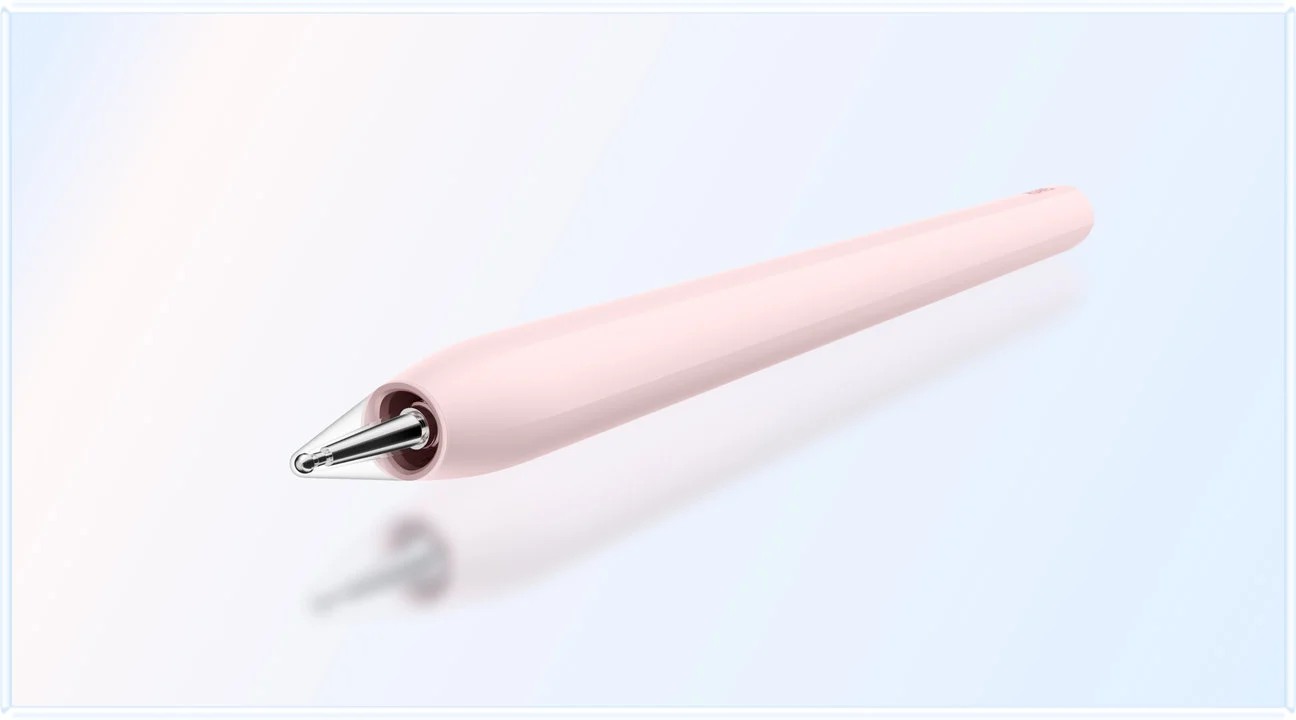 Image: HUAWEI
HUAWEI MatePad Air PaperMatte Edition
12-inch PaperMatte OLED with compatible M-Pencil Pro. Import a cropped board photo and make room for an explanation next to it.
Read the full recommendation ↓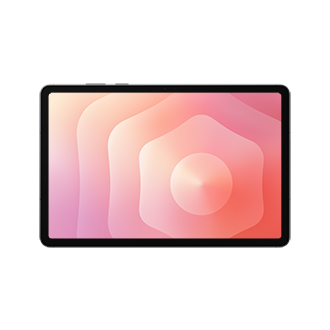 Image: Samsung
Samsung Galaxy Tab S11
11-inch display and S Pen support. Try holding it with the case and check that the note app imports your image.
Read the full recommendation ↓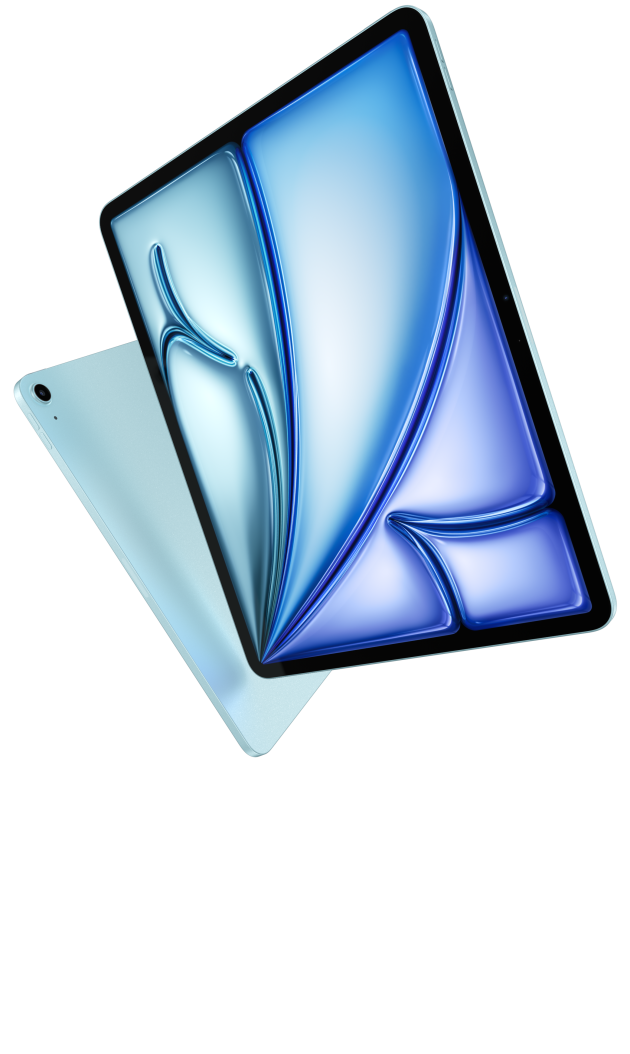 Image: Apple
Apple iPad Air 11-inch (M4)
Apple Pencil Pro support on the 11-inch iPad Air M4. Reopen an image-rich note on a second device that has your course library.
Read the full recommendation ↓Compare what each tablet brings to the capture routine
| Tablet | Best fit | Relevant hardware | What to verify |
|---|---|---|---|
| HUAWEI MatePad Air PaperMatte Edition | Working over a diagram after class | 12-inch PaperMatte OLED with compatible M-Pencil Pro | Import a cropped board photo and make room for an explanation next to it |
| Samsung Galaxy Tab S11 | Writing brief notes while standing | 11-inch display and S Pen support | Try holding it with the case and check that the note app imports your image |
| Apple iPad Air 11-inch (M4) | Building on an existing archive | Apple Pencil Pro support on the 11-inch iPad Air M4 | Reopen an image-rich note on a second device that has your course library |
Turn one diagram into something you can revise
Use a board image captured with permission, or a diagram that is already in the course pack. Crop it to keep the labels legible, drop it into the notebook and write what the arrows mean in your own words. Leave enough margin for the explanation to be read without zooming. Add a reference to the lecture or slide number so you can check it later. This is the kind of work for which the MatePad Air’s 12-inch display makes a practical difference.
Some classes require a typed summary each week. Dock the Smart Magnetic Keyboard if you type more than a few lines, then try moving a note and its source together. If the note app only shares an image or PDF, decide whether that is sufficient for other people in your group. A readable archive that can be reopened matters more than how fast you took the photo.
Where a different tablet is a better buy
Choose the Galaxy Tab S11 when a smaller device is easier to hold and most notes are short labels or reminders. Open a typical image using the note app you will keep. Check how much of the image remains after the app places its writing controls on screen, and whether you can still distinguish thin lines.
Choose the iPad Air when your archive, app subscription or course folders already run through iPadOS. Resolve whether notes need to be edited on another device or simply read as a PDF. Use one realistic image to check how the app stores the original and the annotated copy.
Check one week of material before you decide
Create a packet with one picture, one page of reference material and one typed summary. Reopen it on a different device or export it to the format your course accepts. Check the diagram labels, source reference and handwritten explanation. Go with the MatePad Air if you can comfortably work around the diagram and your notes remain easy to revisit after class.
Related comparisons
Product sources
- HUAWEI MatePad Air PaperMatte Edition · manufacturer specifications
- Samsung Galaxy Tab S11 · manufacturer specifications
- Apple iPad Air 11-inch (M4) · manufacturer specifications
- HUAWEI MatePad Air product and accessory overview
- HUAWEI Smart Magnetic Keyboard compatibility
- HUAWEI M-Pencil Pro
- Apple Pencil compatibility
- Apple iPad keyboard compatibility
SPECIALIST RESEARCH LIBRARY
Continue at Lightweight Tablet Guide
Explore the complete set of buying guides, product breakdowns, sources, and methodology on the dedicated tablet site.
Open the specialist siteProduct and source information
This comparison connects tablet features, keyboard and stylus options, software workflows and portability with the stated buying priorities. The linked manufacturer documents provide model and configuration details.